


I recently upgrade my Creality Ender 3 V3 KE using the Co Print 3D KCM kit (multi-color). It can be purchased here:
https://coprint3d.com/pages/kcm-klipper-chroma-module
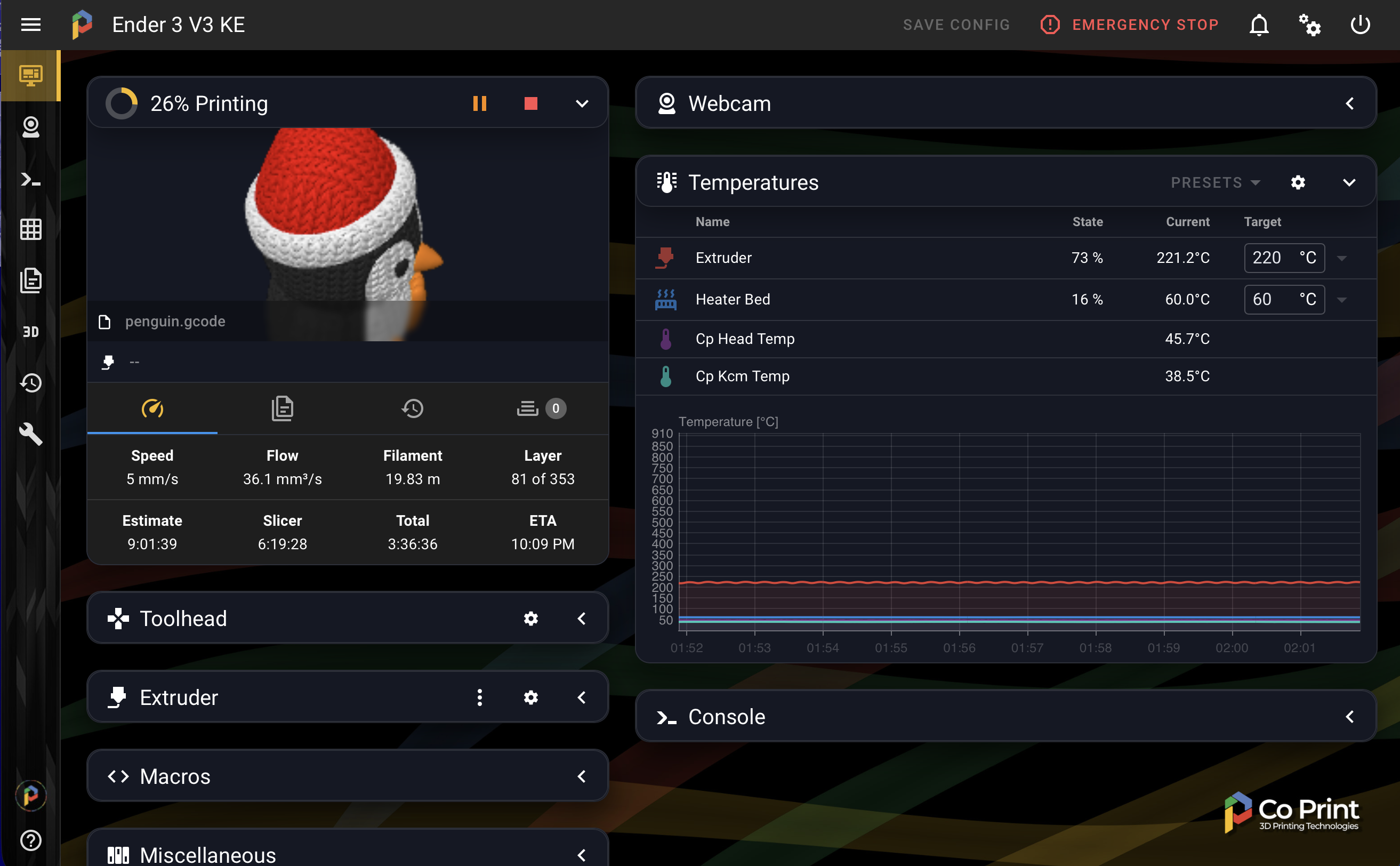
I rooted my machine and installed Mainsail. I wanted a custom theme so I created this Co Print 3D inspired theme.
A custom Mainsail theme tuned for a clean sidebar and a Yellow primary accent color, based on the Co-Print 3D color palette.
- Primary (Accent): Yellow
#f6ba1b - Green:
#38ab57 - Red:
#e74736 - Blue:
#547ebd
custom.css(theme styling)sidebar-background.jpgmain-background.jpgfavicon-16x16.pngfavicon-32x32.pngsidebar-logo.png
Mainsail loads custom themes from a hidden folder named
.themeinside your printer’sconfigdirectory.
This is the easiest way to install and update.
Syntax:
ssh <user>@<PRINTER_IP>
Example:
ssh pi@192.168.1.202
Most installs use one of these paths:
~/printer_data/config/usr/data/printer_data/config(common on rooted Creality setups)
cd ~/printer_data/config
or
cd /usr/data/printer_data/config
git clone https://github.com/porrey/Co-Print-3D-Mainsail-Theme.git .themeIf the above command fails, you may need to install git. Run these two commands and then try again.
a) Update the local packages
sudo apt-get update
b) Install git
sudo apt-get install git -y
After install/update, do a hard refresh:
- Windows/Linux:
Ctrl + Shift + R - macOS:
Shift + <Rrfresh Button>
cd ~/printer_data/config/.theme
git pullOptional: Enable automatic updates in Mainsail (Update Manager) Moonraker (which powers Mainsail’s update system) can track your cloned theme repo and offer Update actions in the UI.
-
Open your
moonraker.conf(typically at ~/printer_data/config/moonraker.conf). -
Add this section (adjust the path: if your config directory is different):
[update_manager coprint_mainsail_theme]
type: git_repo
path: ~/printer_data/config/.theme
origin: https://github.com/porrey/Co-Print-3D-Mainsail-Theme.git
primary_branch: main
managed_services:
Notes: - path must point to the folder that contains the .git directory (your cloned .theme). - If your host uses /usr/data/printer_data/config, then set: - path: /usr/data/printer_data/config/.theme - managed_services can be left blank for a theme (no service to restart).
- Save
moonraker.conf, then restart Moonraker (or reboot the host). After that, you should see a new entry in Settings → Update Manager.
In Mainsail:
- Go to Machine → Files
- Open the config directory
- Enable Show hidden files (gear icon)
- Create a folder named:
.theme
Upload the files listed:
config/.theme/custom.css(theme styling)config/.theme/sidebar-background.jpgconfig/.theme/main-background.jpgconfig/.theme/favicon-16x16.pngconfig/.theme/favicon-32x32.pngconfig/.theme/sidebar-logo.png
- Windows/Linux:
Ctrl + Shift + R - macOS:
Cmd + Shift + R
- Do a hard refresh (
Ctrl/Cmd + Shift + R) - Clear your browser cache (if needed)
- Confirm the file is exactly:
config/.theme/custom.css
.theme is a hidden folder. In Mainsail file manager, enable Show hidden files.
MIT License — see the header in custom.css.