

A web-based manga creation tool with AI image generation support. Create professional manga pages directly in your browser.
Try the Demo - No installation required!
- Features
- Quick Start
- Requirements
- AI Image Generation Setup
- Keyboard Shortcuts

- Gallery
- FAQ
- Support
- License
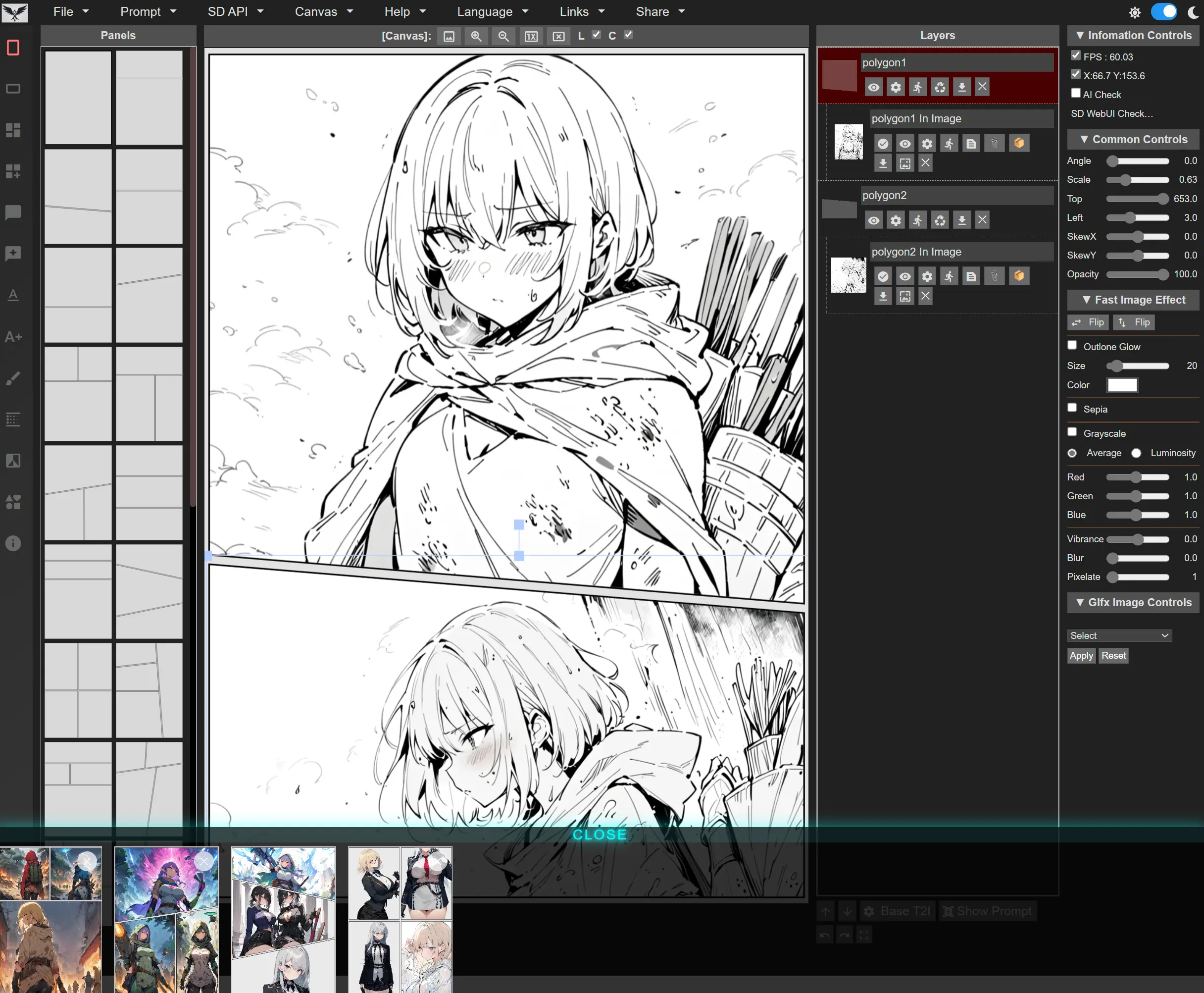
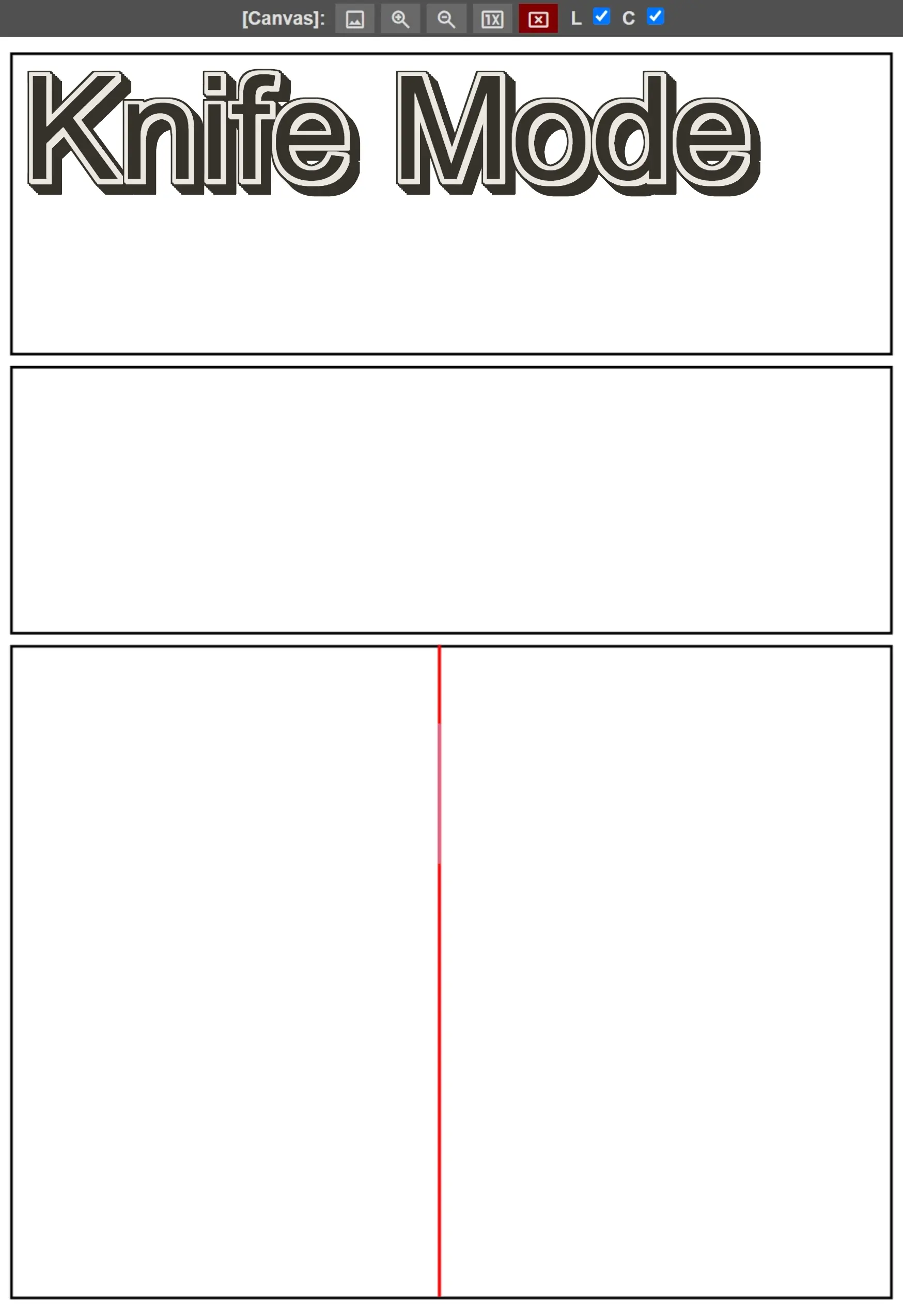
- Panel Layouts - 69 pre-built templates (41 portrait, 28 landscape), knife tool splitting, vertex editing and random cut
- Multi-Page Projects - Page thumbnail bar with click-to-switch and drag-to-reorder
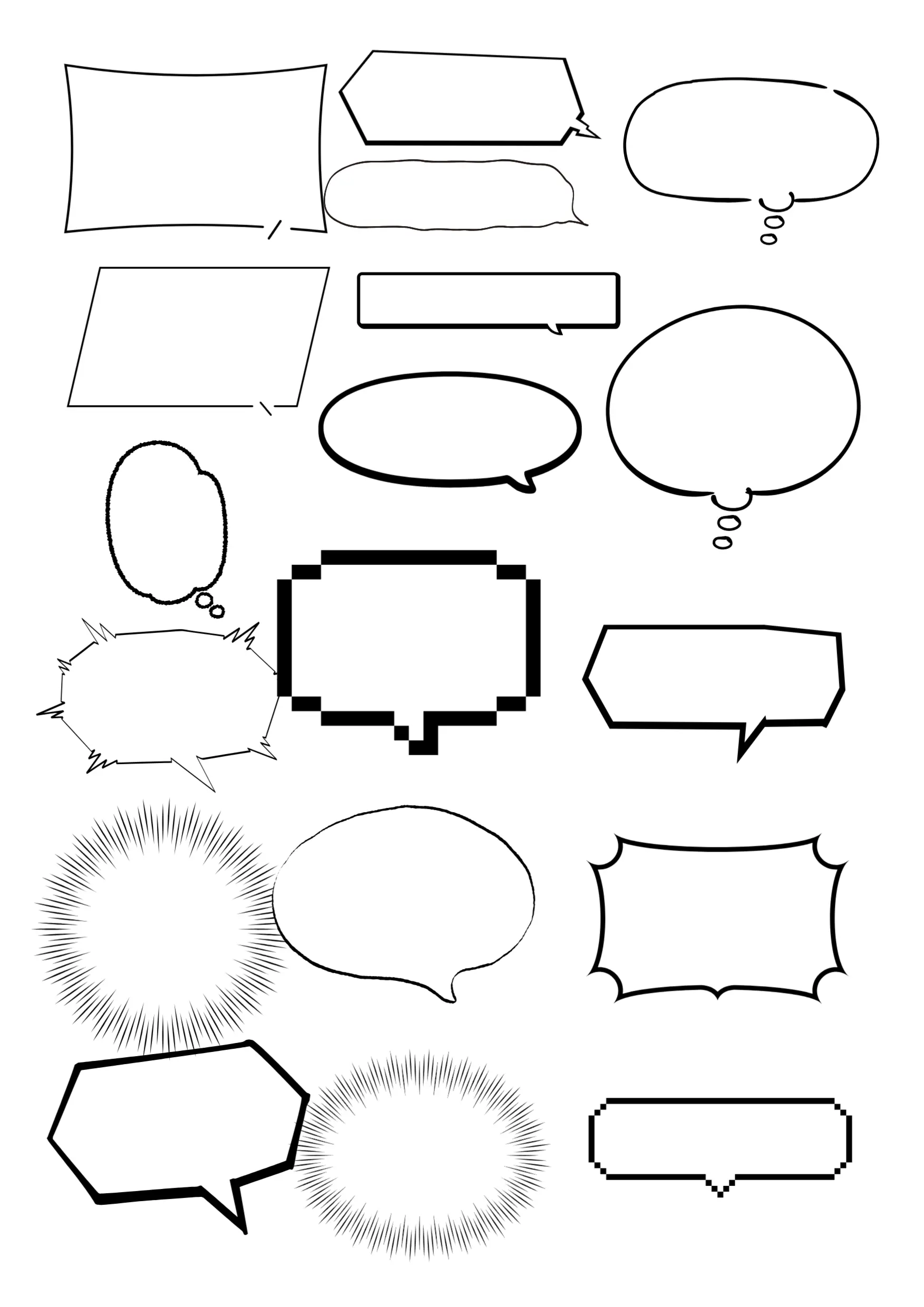
- Speech Bubbles - 48 styles with customizable colors and transparency, plus freehand custom bubbles
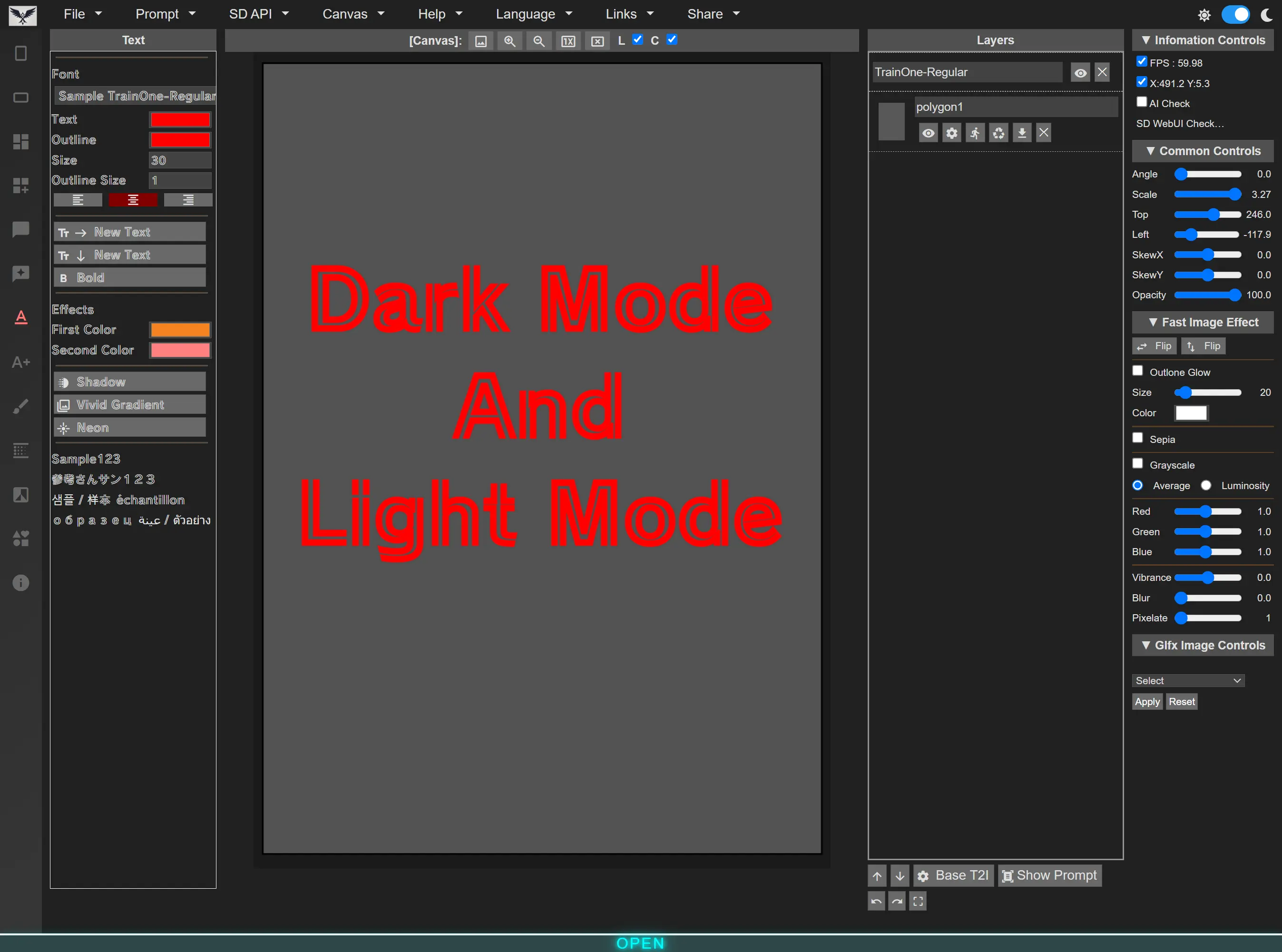
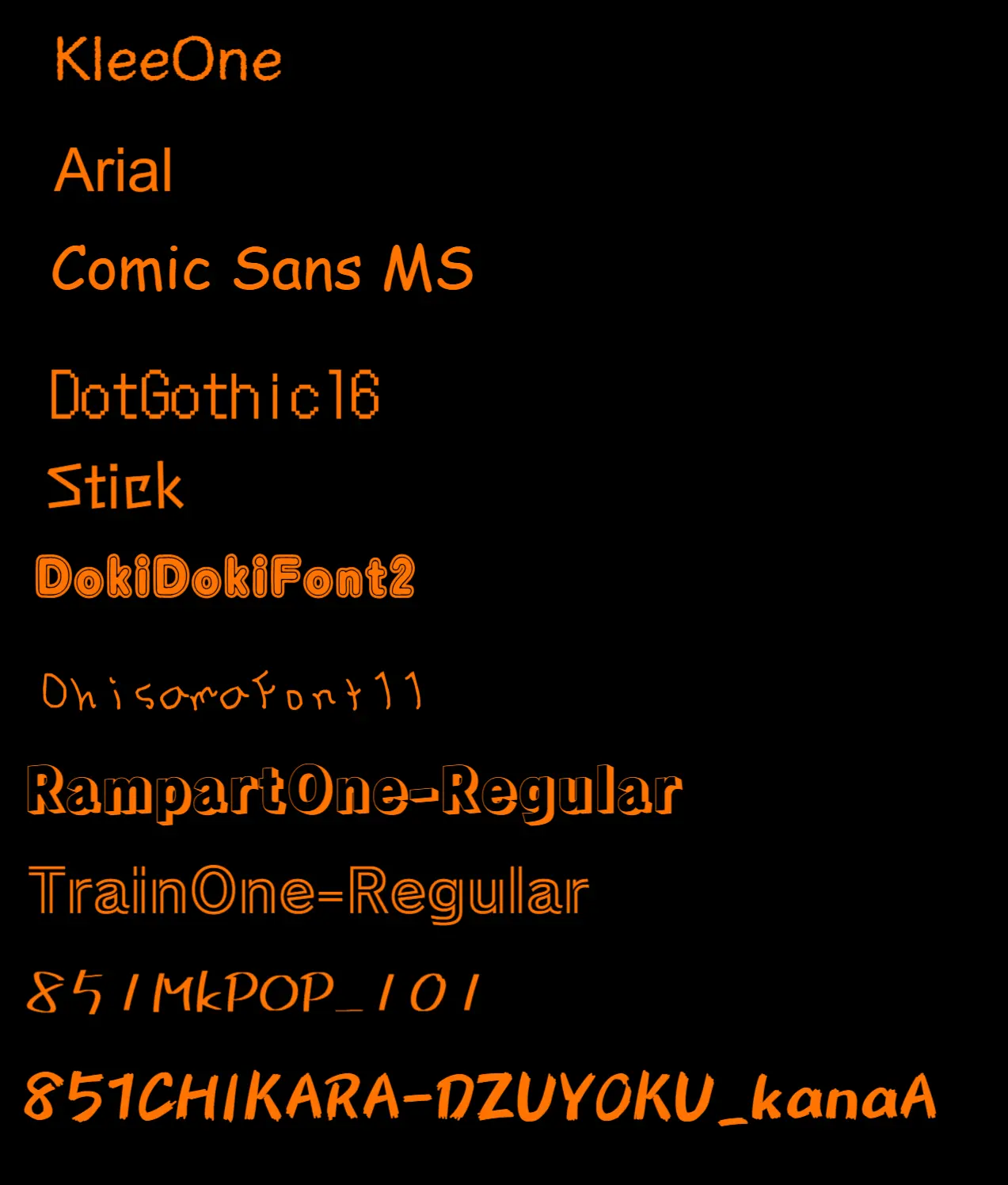
- Text Tools - Vertical (tategaki) and horizontal text, 156 bundled fonts in 4 categories, plus 31 decorative image-text styles
- Layer Management - Organize images, text, and panels with familiar layer controls
- Undo/Redo - No step limit within a page (history is per page and clears on page switch)
- Auto-Fit - Images automatically scale and trim to fit panels
- Adjustments - Rotation, position, scale, skew, opacity, flip horizontal/vertical, crop
- Monochrome Conversion - 6 one-click presets, applicable to one image, one page, or the whole project
- Filters - 15 filters including unsharp mask, zoom blur, dot screen, hex pixelate, ink, vibrance, hue/saturation
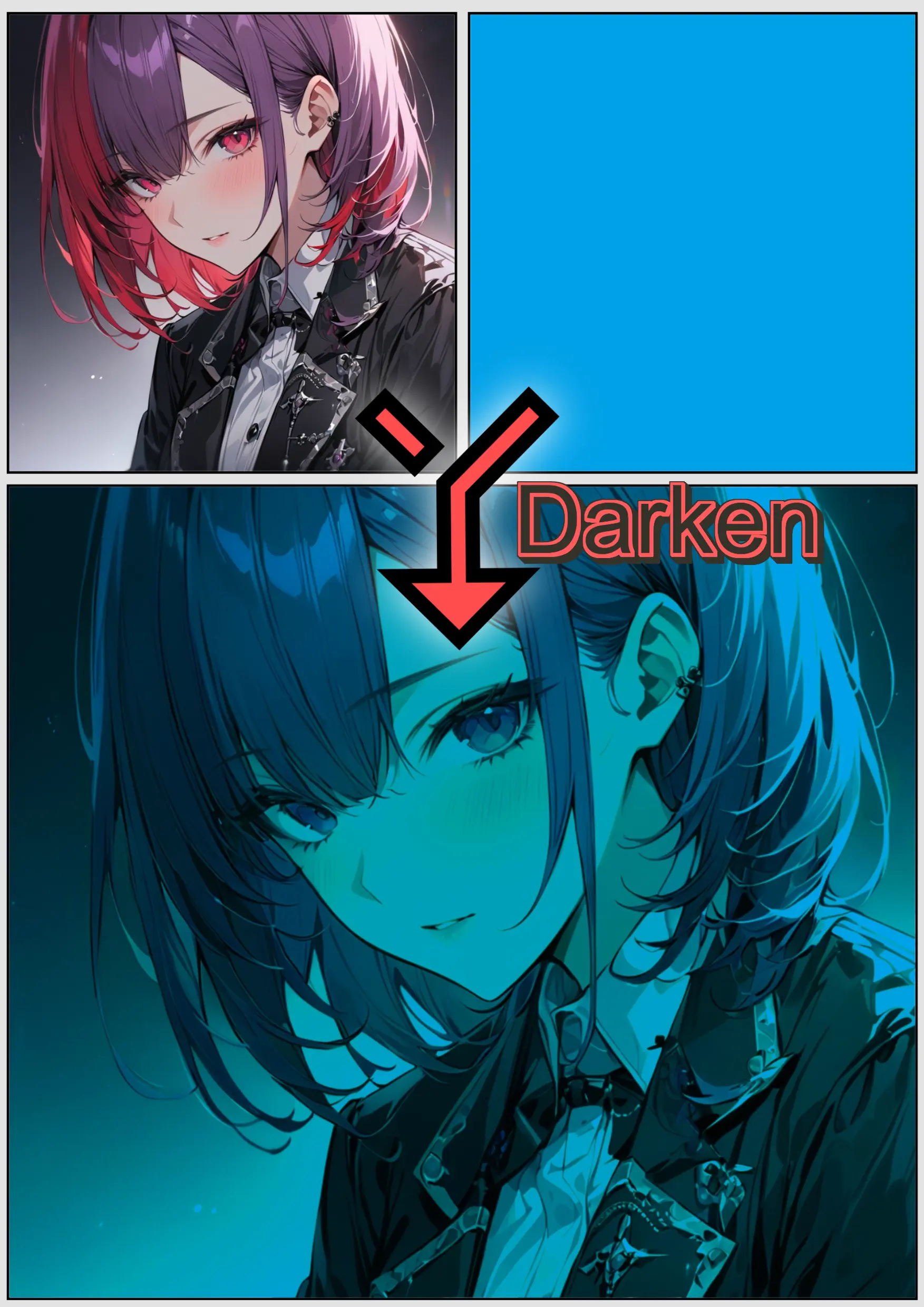
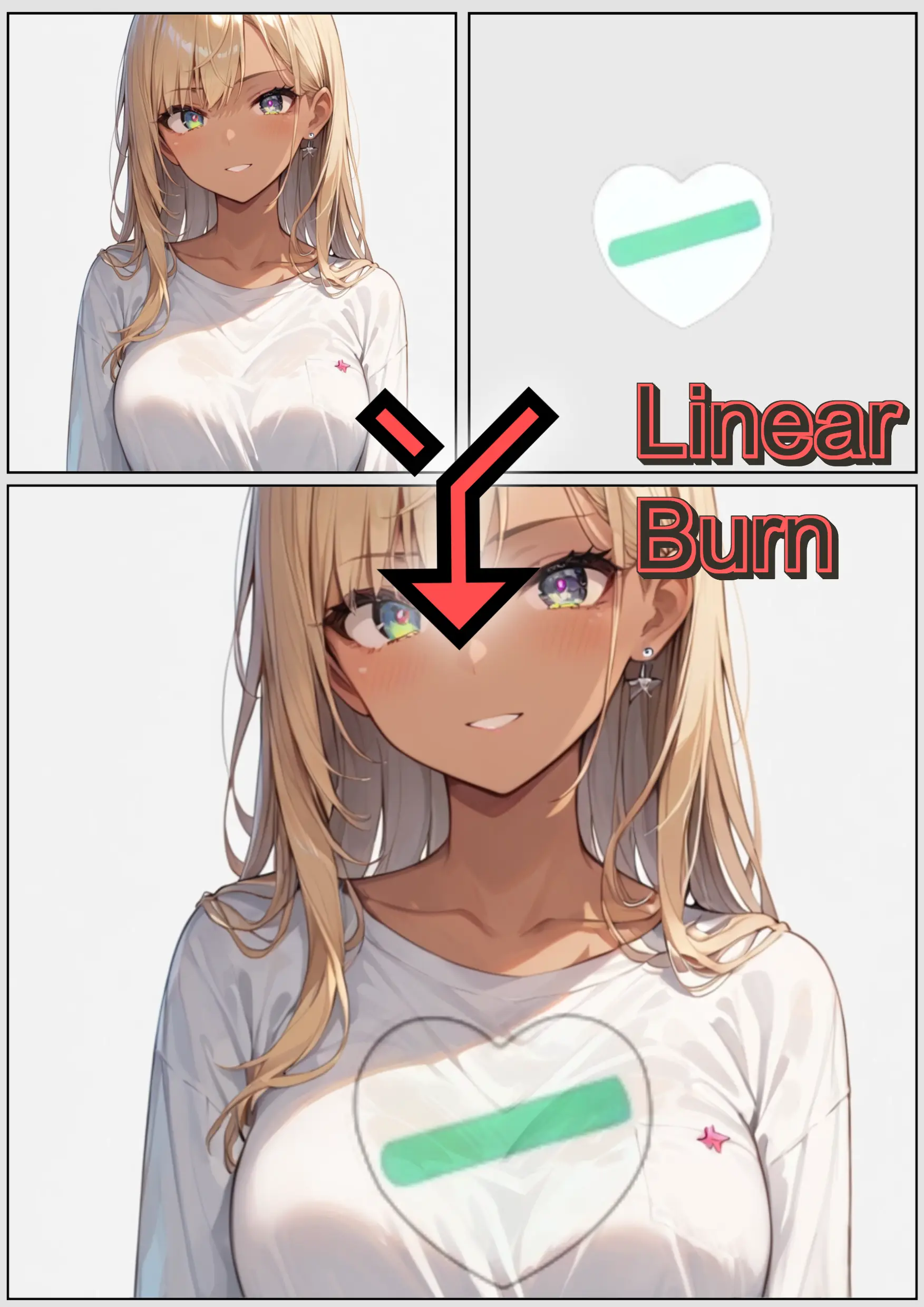
- Blend Modes - 25 Photoshop-style blend modes
- Screen Tones - 5 generators: halftone, noise, snow, speed lines, focus lines
AI generation is optional — every editing feature works without it. You supply and configure the backend.
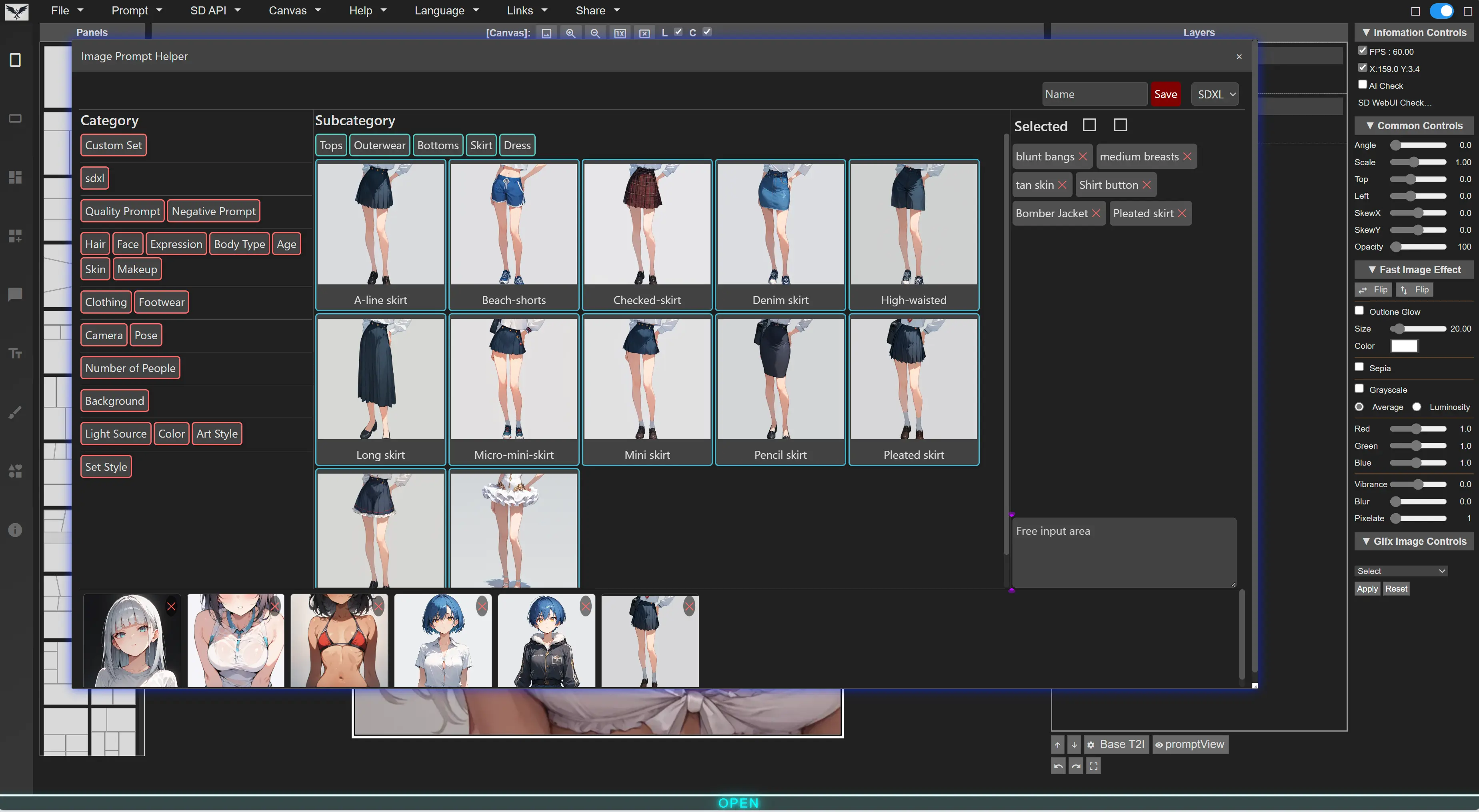
- Text2Image / Image2Image - Generate or transform images directly in panels
- Inpaint - Paint a mask and regenerate just that area (ComfyUI only)
- Angle Generate - Regenerate an image from a new camera angle (ComfyUI only)
- Upscale / Remove Background - Post-processing on generated or imported images
- LLM features - Story to per-panel prompts, image to prompt, dialogue polishing and translation
- Prompt Queue - Batch generate across panels and pages, with per-service concurrency
- Supported Backends (6):
- ComfyUI — local (SD1.5, SDXL, Flux, Z-Image-turbo, Qwen-Image, custom workflows)
- RunPod ComfyUI — the same, running on your RunPod pod
- SD WebUI — A1111 and Forge (SD1.5, SDXL, Pony, Flux1)
- Fal.ai — cloud, API key
- Grok (xAI) — cloud, language model tasks
- Ollama — local, language model tasks
Each task type is routed independently, so image generation and dialogue translation can use different services. See the AI backend setup guide.
- Project Save/Load - Saves as a single
.lz4archive (DESU-Project.lz4); loading accepts.lz4and.zip - Settings Save/Load - Preserve your workflow preferences
- Auto Save - Saves to the browser every 10–600 seconds, with recovery on next launch
- Image Export - PNG at a resolution derived from page size in mm × DPI (default 300), or SVG
English, Japanese, Korean, French, Chinese, Russian, Spanish, German (8 languages)
Visit https://new-sankaku.github.io/manga-editor-desu/
No setup required. Works with all features including AI generation when connected to a local backend.
git clone https://github.com/new-sankaku/manga-editor-desu.git
cd manga-editor-desu
start index.html- Chrome (Recommended)
- Firefox
- Edge
- Safari
One of the following:
-
Start ComfyUI with API access enabled:
python main.py --listen --enable-cors-header
-
In Manga Editor, click the Settings icon
-
Select ComfyUI as the backend
-
Enter the API URL (default:
http://127.0.0.1:8188) -
Click Connect
-
Start WebUI with API access:
./webui.sh --api --cors-allow-origins=*Or add to
webui-user.bat:set COMMANDLINE_ARGS=--api --cors-allow-origins=* -
In Manga Editor, click the Settings icon
-
Select WebUI or Forge as the backend
-
Enter the API URL (default:
http://127.0.0.1:7860) -
Click Connect
| Action | Windows/Linux | Mac |
|---|---|---|
| New Page | Alt + N |
Alt + N |
| Previous Page | Alt + Left |
Alt + Left |
| Next Page | Alt + Right |
Alt + Right |
| Undo | Ctrl + Z |
Cmd + Z |
| Redo | Ctrl + Y |
Cmd + Y |
| Copy | Ctrl + C |
Cmd + C |
| Paste | Ctrl + V |
Cmd + V |
| Delete | Delete / Backspace |
Delete / Backspace |
| Save Project | Ctrl + S |
Cmd + S |
| Load Project | Ctrl + O |
Cmd + O |
| Image Download | Ctrl + D |
Cmd + D |
| Save Settings | Ctrl + Shift + S |
Cmd + Shift + S |
| Toggle Grid | Ctrl + G |
Ctrl + G |
| Toggle Layers Panel | Ctrl + L |
Ctrl + L |
| Toggle Controls | Ctrl + K |
Ctrl + K |
| Zoom In | Ctrl + 8 |
Ctrl + 8 |
| Zoom Out | Ctrl + 9 |
Ctrl + 9 |
| Zoom Fit | Ctrl + 0 |
Ctrl + 0 |
| Move Object | Arrow Keys |
Arrow Keys |
| Move Object (Fast) | Shift + Arrow Keys |
Shift + Arrow Keys |
| Layer Up | Ctrl + Up |
Cmd + Up |
| Layer Down | Ctrl + Down |
Cmd + Down |
| Toggle Page Bar | Ctrl + B |
Ctrl + B |
| Show Prompts | Ctrl + P |
Cmd + P |
| Deselect / Clear Mode | Escape |
Escape |
| Shortcut List | F1 |
F1 |
| Complete Crop | Enter |
Enter |
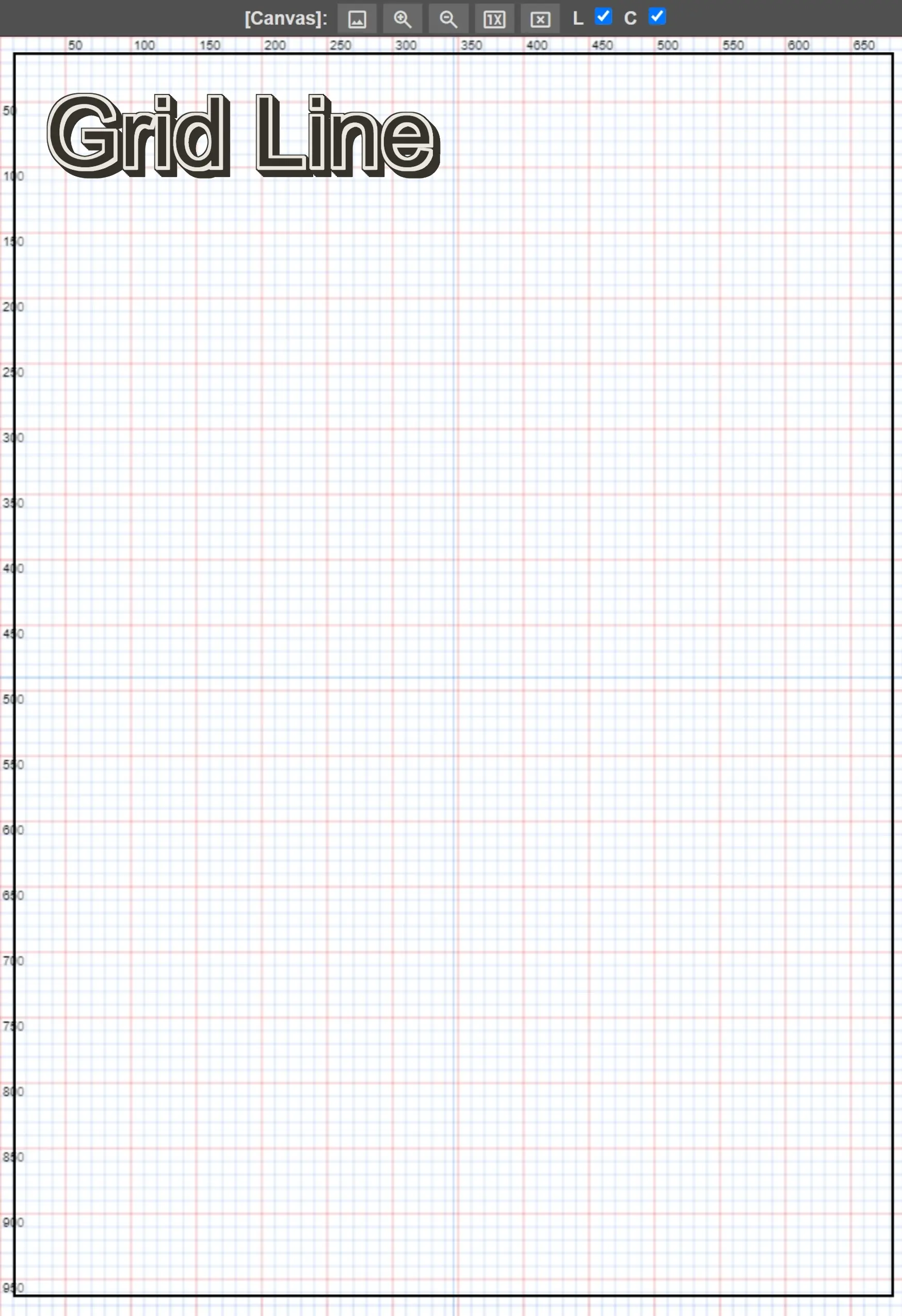
Arrow-key movement snaps to the grid spacing when the grid is on, moves 1 px otherwise, and accelerates on a long press. Shortcuts are suppressed while a text field has focus.
image-drop.mp4
custom-speech-bubble.mp4


A: Yes! All editing features work standalone. AI generation is optional and requires a separate backend (ComfyUI/WebUI/Forge).
A: Common solutions:
- Ensure CORS headers are enabled (
--cors-allow-origins=*or--enable-cors-header) - Check the API URL is correct
- Verify the backend is running
- Try using
http://127.0.0.1instead oflocalhost
A: Yes! You can import and use your own ComfyUI workflows.
A: Project Save downloads a single LZ4 archive named DESU-Project.lz4 to your computer. Loading accepts both .lz4 and .zip. Projects are never uploaded.
A: In localStorage:
- Interface language and UI settings
- API connection settings, including API keys for cloud services
- Custom prompt presets
- Tutorial completion status
In IndexedDB:
- Imported ComfyUI workflows
- Uploaded fonts
- Auto-saved projects
- Usage statistics and estimated API cost records
API keys are stored unencrypted. Avoid entering them on a shared computer.
A: Open browser DevTools (F12) → Application tab → Local Storage → Clear the site data. Or use your browser's "Clear site data" feature.
A: The editor has no server of its own, and your projects are never uploaded by the application. Two things do leave your machine:
- Analytics. The hosted site uses Google Analytics, so page views and interface interactions are recorded.
- Cloud AI services. If you configure RunPod, Fal.ai or Grok, the prompts, story or dialogue text and panel images for those requests are sent to that service. Using only ComfyUI, SD WebUI or Ollama on your own machine keeps generation local.
Page loads also fetch assets from Google Fonts, cdnjs and unpkg.
A: Feature reference (日本語) · FAQ (日本語) · AI backend setup (日本語)
- Bug Reports & Feature Requests: GitHub Issues
- Chat: Discord
- Contributing: See CONTRIBUTING.md
- Documentation: Feature reference · FAQ · AI backend setup
This project is licensed under the GNU General Public License v3.0 - see the LICENSE file for details.
Made with love for manga creators worldwide.