This project is not endorsed or sponsored by Artiphon, Inc in any way.
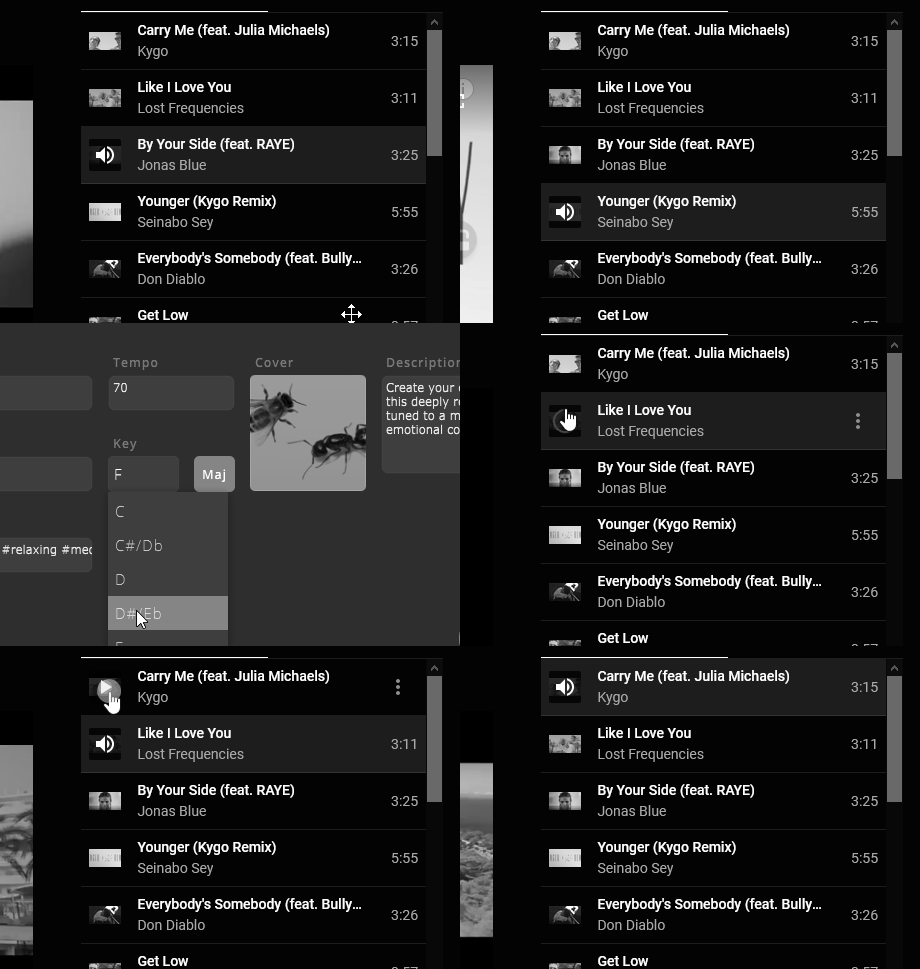
This software enhances your improv music-making experience when using an Orba connected to a Windows PC over USB, by automatically configuring Orba's key based on a currently playing song.
When playing a song, you often need to change the key programmed into the Orba in order for your improv to sound good. This means determining the correct key, opening the Orba app, and then modifying the key through the app's user-interface.
Enter AutoKey.
Whenever a new song comes on, AutoKey will determine the key signature of the song using Spotify's Analysis API, and then reconfigure your Orba using a series of mouse movements and keystrokes.
The result is a much improved experience when playing and searching for your favorite songs, as you no longer need to worry about the Orba's key being incorrect (mostly - Spotify may not have the key, or it may be inaccurate.)
Setting up AutoKey is pretty involved at the moment, but shouldn't be out of reach if you're familiar with using the command line & Python.
-
YouTube Music, YouTube, or Spotify
-
NOTE: the app assumes you've installed AutoIt at
C:\Program Files (x86)\AutoIt3\AutoIt3.exe. If that's not the case, editAUTOIT_PATHat the top ofbuild.py.
-
Clone this repo or download the zip (green
Codebutton to the top-right) -
Check you have Python 3 installed, and that your system's
PATHenvironment variable includes the path to Python (trying typingpythonin a command-prompt window).- Add dependency:
python -m pip install spotipy(get pip)
- Add dependency:
-
Add environment variables for your Spotify credentials (needed to determine key of a song)
-
Visit Spotify developer dashboard
-
Create a new Spotify application, and take note of the
Client IDandClient Secret -
Open PowerShell
-
$Env:SPOTIPY_CLIENT_ID = "your_client_id" -
$Env:SPOTIPY_CLIENT_SECRET = "your_client_secret"NOTE: spotipy is not a typo.
-
Log out of Windows and back in again
-
-
In PowerShell, run
python build.py -
In PowerShell, run
python check_config_win.pyto make sure everything is setup correctly:- It should show
Looks good! Give it a try from Firefox..
- It should show
-
Open the Orba app! Almost there!
-
Open
src/app/orba_autokey.au3and follow the instructions to calibrate the app
-
Install the Firefox extension
- Visit
about:debugging - Click
This Firefox - Click
Load Temporary Add-on... - Select
src\add-on\manifest.json
- Visit
-
You should see a new browser action icon in the toolbar
-
Visit one of the supported music streaming sites (Prerequisite 2)
-
Play a song
-
Watch your Orba auto tune itself to the correct key
-
If nothing happens, it may be because there is no key information for this song. Try another.
-
If still not working, check errors in a few places:
- On
about:debugging, clickInspecton the extension Menu > Web Developer > Browser Console- On the music player page,
Right Click > Inspect > Console
- On
If you have multiple music services open, each will be sending data to the app and you'll have some really annoying key changes. For now, only use with one streaming service open at once.
The YouTube support is pretty rudimentary; it just forwards the page title to the app. There's no support for grabbing the artist, so it'll be sending whatever you type in the search box, and then also when you click on a video.