English | 한국어
Simple and Powerful VS Code SFTP/SSH File Synchronization Extension


Safely synchronize remote servers and local files with Auto Upload on Save and Intelligent Conflict Detection.
Press Ctrl+S to instantly upload to the remote server. If the remote file has been modified by someone else, the intelligent conflict detection system will alert you immediately.
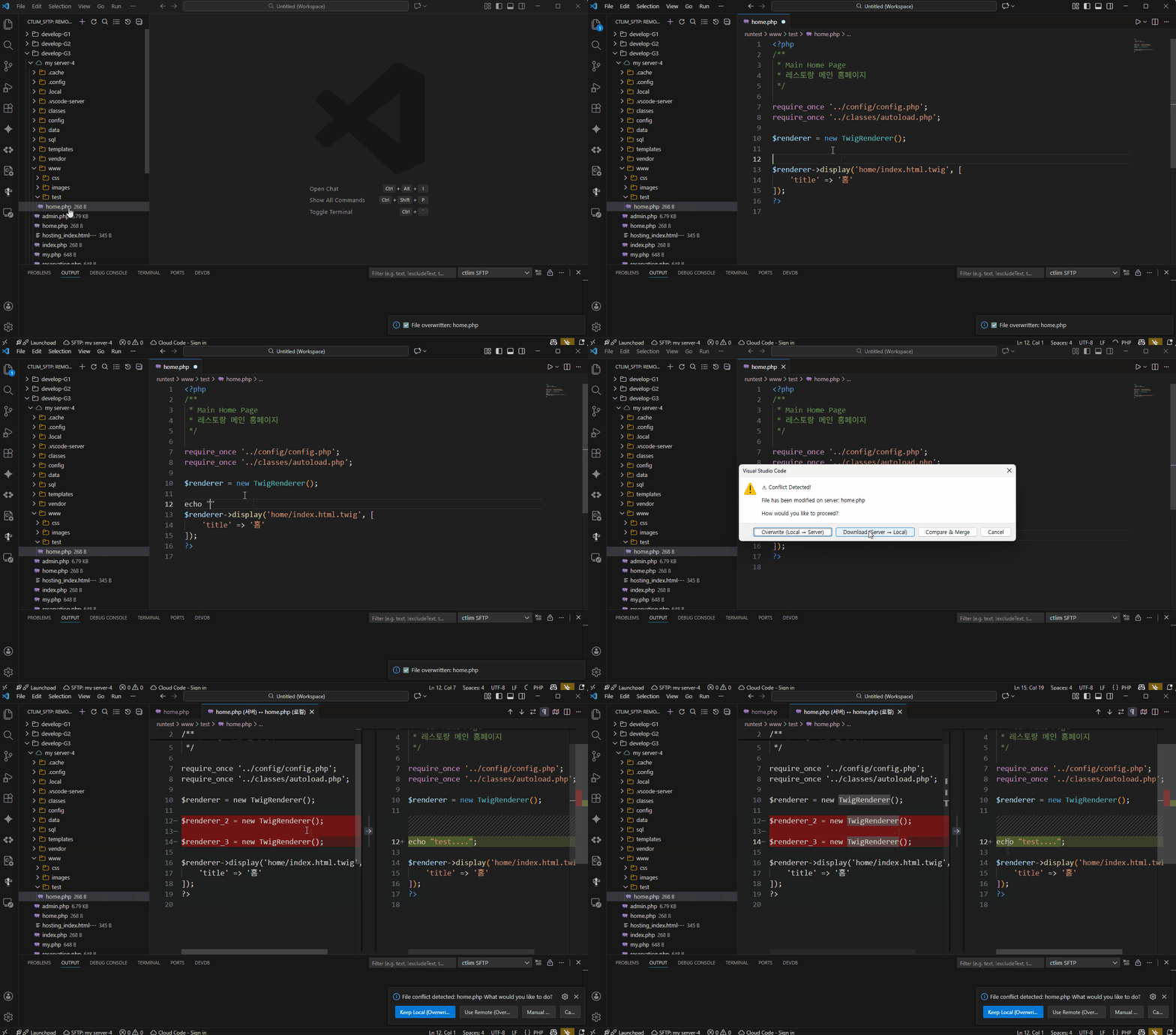
- Overwrite: Force upload with local content
- Compare: Visually check changes with Diff Viewer
- Download: Update local file with remote content
No need to navigate complex paths every time. Register frequently used remote folders or files as bookmarks and access them with a single click.
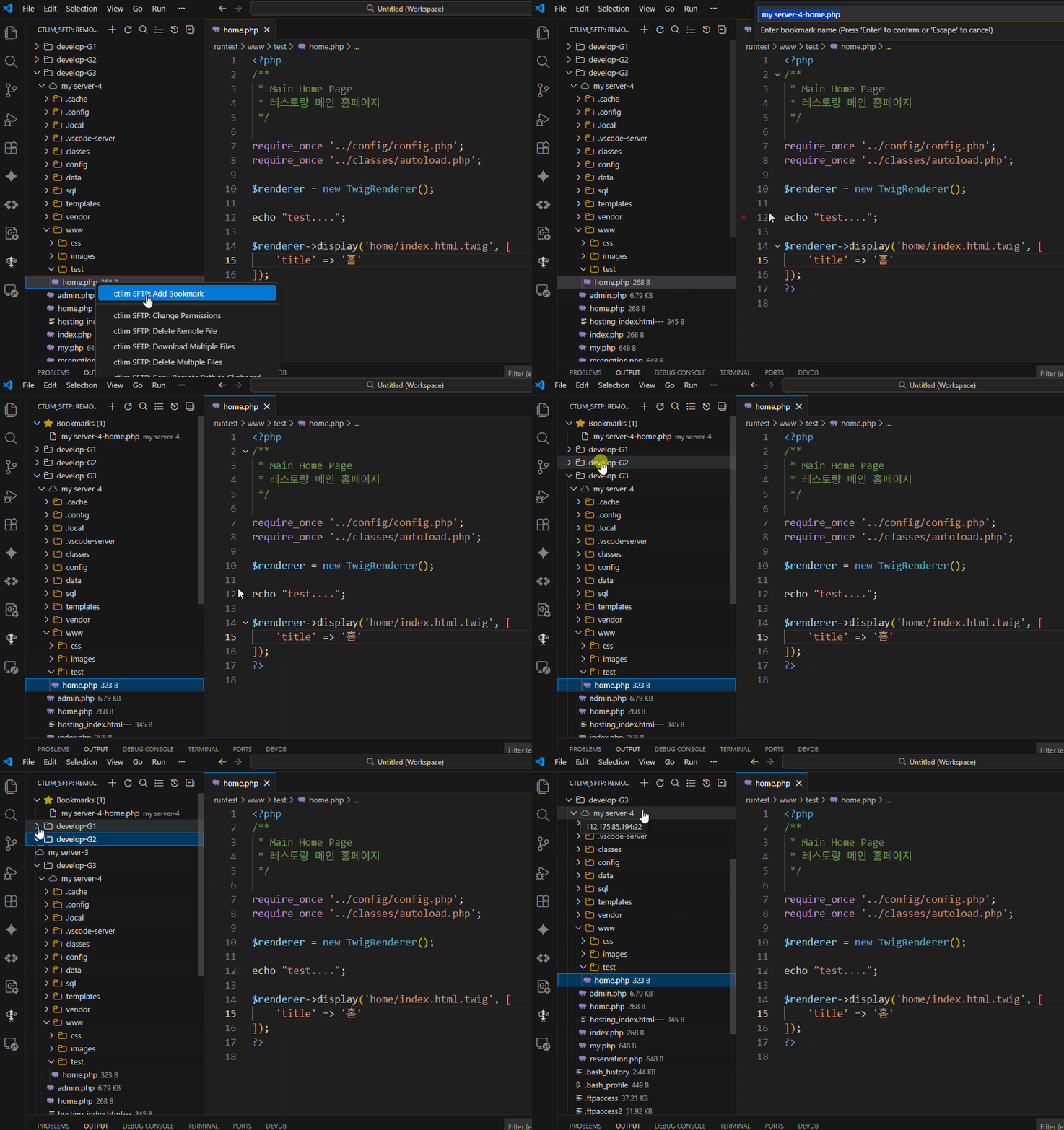
- File/Folder Favorites: Easily add via right-click in Tree View
- Frequent List: Auto-sort based on usage frequency
- Activity Bar Integration: Instant access from the sidebar
Browse the remote server's file system in real-time with a tree structure, just like VS Code's Explorer.
- Multi-Server Support: Manage Dev/Prod/Test servers in groups
- Icon Themes: Auto-apply icons by file type
- Real-time Status: Check connection status and file modification times
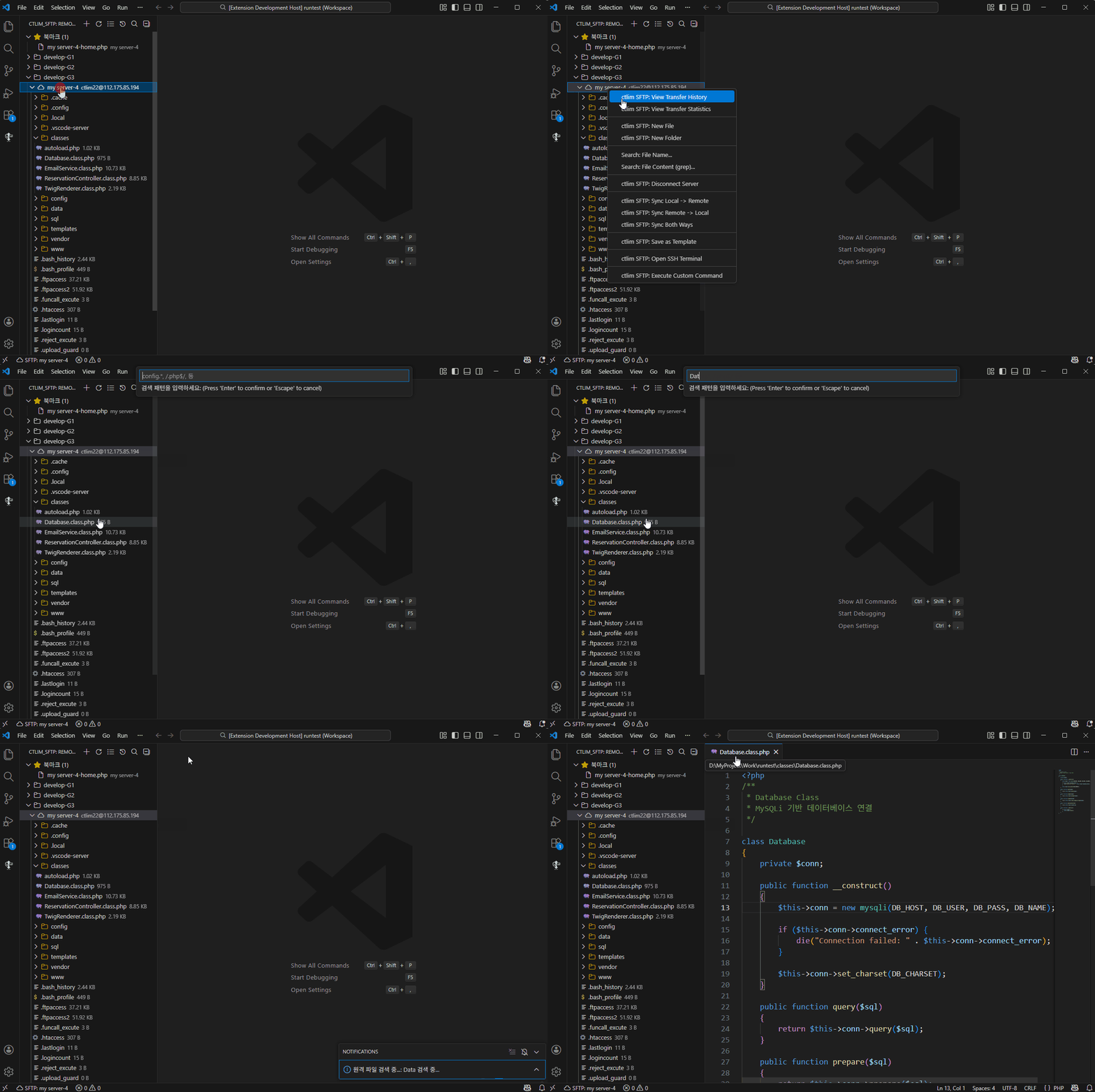
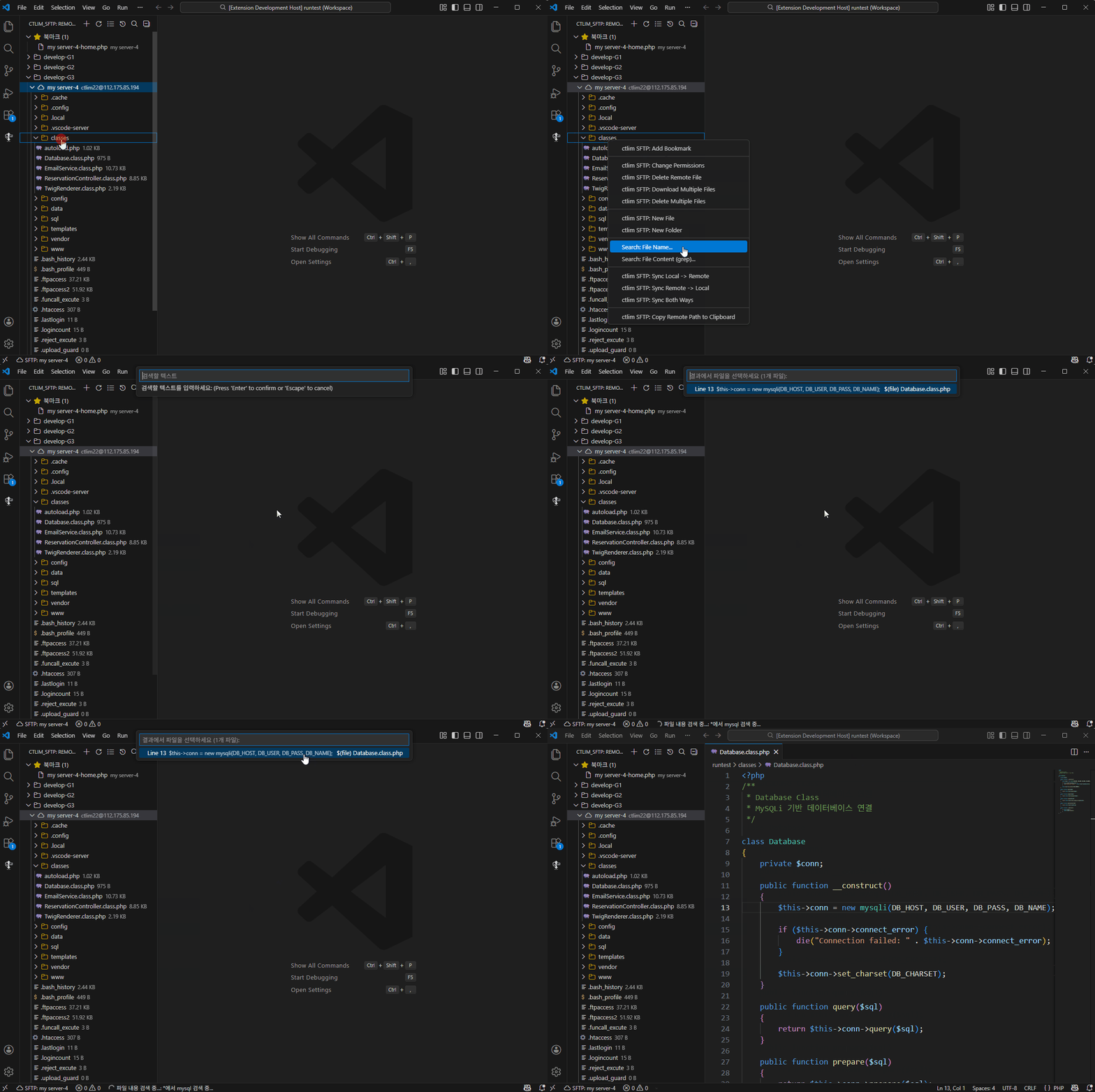
Search remote files not just by name, but also by content (grep). Supports regex for precise searching.
[Search by Filename]
[Search by Content]
- Search: File Name: Quickly find files by name
- Search: Content (grep): Deep search into file contents (utilizing server-side grep)
When you suspect a conflict or want to verify changes, compare local and remote files side-by-side (Diff).
- Highlight code differences line by line
- Verify content before merging
- Auto Upload on Save - Press
Ctrl+Sto instantly sync to remote server - Conflict Detection System - Choose to overwrite/compare/cancel when remote file changes detected
- Multi-Server Management - Manage multiple servers (dev/production) in one configuration
- Remote File Explorer - Browse server file structure in real-time from Activity Bar
- SSH Key Authentication - Supports Password or Private Key (with passphrase)
- Legacy Server Support - Compatible with legacy SSH algorithms (DES, SHA1, etc.)
- Metadata-Based Sync - Safe uploads with file modification time tracking
- Smart Bookmarks - Favorite frequently used files/folders
- Save As Remote - Enter remote path directly or select from tree
- Diff Comparison - Visually compare local/remote files on conflict
- Selective Ignore - Exclude unnecessary files like
.git,node_modules - Auto Reconnection - Automatically retry on connection loss
- Transfer History - Auto-save upload/download records (last 100)
- Transfer Statistics - Real-time analysis of transfer volume, speed, success rate
- Retry Failed Transfers - One-click retry for failed transfers
- Server Statistics - Transfer stats and performance comparison by server
- Remote File Search - Search by filename or content (regex support)
- Permission Management - One-click chmod changes (755, 644, etc.)
- SSH Terminal - Open SSH terminal to remote server directly
- Multi-File Operations - Download/delete multiple files simultaneously
- ✅ VS Code - Visual Studio Code
- ✅ Cursor - AI-powered code editor (VS Code-based)
- ✅ Other VS Code Compatible Editors
- Press
Ctrl+Shift+X(Open Extensions Tab) - Search "ctlim SFTP"
- Click Install
# VS Code
code --install-extension ctlim.ctlim-sftp

# Cursor
cursor --install-extension ctlim.ctlim-sftpOpen Command Palette:
- Windows/Linux:
Ctrl+Shift+P - macOS:
Cmd+Shift+P
Enter command: ctlim SFTP: Config
→ .vscode/ctlim-sftp.json auto-generated ✅
Enter server information in the generated configuration file:
{
    "name": "My Development Server",
    "host": "host ip",
    "protocol": "sftp",
    "port": 22,
    "username": "username",
    "password": "password",
    "remotePath": "/var/www/html",
    "context": "d:/MyProject/Project/vss1",
    "uploadOnSave": true,
    "downloadOnOpen": "confirm",
    "downloadBackup": ".vscode/.sftp-backup",
    "webUrl": "http://dev.example.com",
    "ignore": [
      ".vscode",
      ".git",
      "node_modules",
      "*.log"
    ]
}[
{
"name": "Dev Server 1",
"group": "Development",
"host": "dev1.example.com",
"protocol": "sftp",
"port": 22,
"username": "username",
"password": "password",
"remotePath": "/var/www/html",
"context": "d:/MyProject/Project/dev1",
"uploadOnSave": true,
"downloadOnOpen": true,
"webUrl": "http://dev1.example.com",
"ignore": [
".vscode",
".git",
"node_modules",
"*.log"
]
},
{
"name": "Dev Server 2",
"group": "Development",
"host": "dev2.example.com",
"protocol": "sftp",
"port": 22,
"username": "username",
"password": "password",
"remotePath": "/var/www/html",
"context": "d:/MyProject/Project/dev2",
"uploadOnSave": true,
"downloadOnOpen": true,
"ignore": [
".vscode",
".git",
"node_modules",
"*.log"
]
},
{
"name": "Production Server",
"group": "Production",
"host": "prod.example.com",
"protocol": "sftp",
"port": 22,
"username": "username",
"password": "password",
"remotePath": "/var/www/html",
"context": "d:/MyProject/Project/prod",
"uploadOnSave": false,
"downloadOnOpen": true,
"ignore": [
".vscode",
".git",
"node_modules",
"*.log"
]
}
]- Click ctlim SFTP icon in Activity Bar (left sidebar)
- Expand server or group, click server name → auto-connect
- Browse file tree and double-click file → auto-download & edit
- Save file (
Ctrl+S) → auto-upload ✨
Server Display by Group:
📁 Development
  ☁ Dev Server 1
  ☁ Dev Server 2
📁 Production
  ☁ Production Server
| Option | Type | Default | Required | Description |
|---|---|---|---|---|
name |
string | - | ❌ | Server identification name (displayed in tree view) |
group |
string | - | ❌ | Server group name (servers with same group displayed together) |
context |
string | "./" |
❌ | Local workspace root (relative/absolute path) |
protocol |
string | "sftp" |
❌ | Protocol: 'sftp' (default) |
host |
string | - | ✅ | Server host address |
port |
number | 22 |
❌ | Server port number |
username |
string | - | ✅ | Server login username |
password |
string | - | ❌ | Password (or use privateKey) |
privateKey |
string | - | ❌ | Path to private key file |
passphrase |
string | - | ❌ | Private key passphrase |
remotePath |
string | "/" |
❌ | Remote server default path |
uploadOnSave |
boolean | false |
❌ | Enable auto-upload on save |
downloadOnOpen |
boolean|'confirm' | false |
❌ | Auto-download on file open - true: Auto-download- false: Manual download- 'confirm': Confirmation dialog before download |
downloadBackup |
string | - | ❌ | Download backup path (relative/absolute path) |
webUrl |
string | - | ❌ | Web server base URL (for browser open feature) |
ignore |
string[] | [] |
❌ | Upload exclusion patterns (glob support) |
watcher |
object | - | ❌ | File watch settings |
connectTimeout |
number | 10000 |
❌ | Connection timeout (milliseconds) |
readyTimeout |
number | 20000 |
❌ | Ready timeout (milliseconds) |
keepaliveInterval |
number | 10000 |
❌ | Keep-Alive interval (milliseconds) |
keepaliveCountMax |
number | 3 |
❌ | Keep-Alive max retry count |
-
Password Authentication (Simple)
{ "username": "user", "password": "your-password" } -
SSH Key Authentication (Recommended)
{ "username": "user", "privateKey": "C:/Users/YourName/.ssh/id_rsa", "passphrase": "your-passphrase" // Optional } -
Password Prompt (Secure)
{
  "username": "user"
  // No password field → prompt shown on connect
}
ctlim SFTP ensures remote file safety with metadata-based conflict detection.

sequenceDiagram
    participant User
    participant VS Code
    participant ctlim SFTP
    participant Remote Server

    User->>VS Code: Open Remote File
    VS Code->>ctlim SFTP: openRemoteFile
    ctlim SFTP->>Remote Server: Download File
    ctlim SFTP->>ctlim SFTP: Save Metadata<br/>(modification time, size)

    Note over User,Remote Server: Another user modifies server file...

    User->>VS Code: Save File (Ctrl+S)
    ctlim SFTP->>Remote Server: Query Current File Info
    ctlim SFTP->>ctlim SFTP: Compare Metadata

    alt Conflict Detected
        ctlim SFTP->>User: ⚠️ Conflict Alert
        User->>ctlim SFTP: Choose (Overwrite/Compare)
    else No Conflict
        ctlim SFTP->>Remote Server: Upload File
        ctlim SFTP->>ctlim SFTP: Update Metadata
    end
-
On Download: Save remote file's modification time and size as local metadata
- Storage location:
.vscode/.sftp-metadata/
- Storage location:
-
On Upload: Compare remote server's current file info with metadata
-
On Conflict Detection: Display modal dialog
⚠️ Conflict Detected!

File has been modified on server: test.php

Do you want to overwrite with local changes?

[Overwrite]  [Compare]  [Cancel]
-
Overwrite 🔄
- Force overwrite remote file with local file
- Remote changes will be lost
-
Compare 📊
- Compare local ↔ remote files in Diff view
- Manual merge possible after reviewing changes
-
Cancel ❌
- Abort upload
- Keep local file as-is
ctlim SFTP provides auto-reconnection for stable connection maintenance.
- Periodic Connection Check: Check server connection status at set intervals (default 10 seconds)
- Auto-Reconnect: Automatically attempt reconnection on connection loss detection
- User Notification: Show notification message on reconnection success/failure
{
  "connectTimeout": 10000,        // Connection attempt timeout (10 seconds)
  "readyTimeout": 20000,          // Connection ready timeout (20 seconds)
  "keepaliveInterval": 10000,     // Keep-Alive check interval (10 seconds)
  "keepaliveCountMax": 3          // Max retry count
}- Connection Loss Detection: When Keep-Alive check fails
- Auto-Reconnect Attempt: Immediate background attempt
- On Success: "🔄 SFTP Reconnection Successful" notification
- On Failure: "
⚠️ SFTP Reconnection Failed" warning + manual reconnection guide
{
  "name": "Dev Server",
  "host": "dev.mysite.com",
  "remotePath": "/home/dev/public_html",
  "uploadOnSave": true,
  "ignore": [".git", "node_modules", "*.log"]
}Workflow:
- Modify PHP/HTML files locally
- Save with
Ctrl+S→ auto-upload - Check results immediately in browser ✨
{
  "name": "Production",
  "host": "prod.mysite.com",
  "remotePath": "/var/www/production",
  "uploadOnSave": false
}Workflow:
- Complete local development (
uploadOnSave: falseprevents auto-upload) - Right-click file →
ctlim SFTP: Upload Filefor manual upload - Ensure safety with conflict detection 🛡️
[
  {
    "name": "🧪 Test",
    "context": "./",
    "host": "test.server",
    "remotePath": "/home/test"
  },
  {
    "name": "🚀 Staging",
    "context": "./dist",
    "host": "staging.server",
    "remotePath": "/var/www/staging"
  },
  {
    "name": "🔥 Production",
    "context": "./dist",
    "host": "prod.server",
    "remotePath": "/var/www/production"
  }
]Workflow:
- Select environment from Activity Bar, then connect/deploy individually
- Independent metadata management for each server
Save frequently used remote files or folders as bookmarks for quick access.
Method 1: Tree View Right-Click
- Right-click remote file/folder in Activity Bar
- Select
Add Bookmark - Enter bookmark name and description
Method 2: Command Palette
ctlim SFTP: Add Bookmark
View Bookmarks:
⭐ Bookmarks (5)
├── 📄 Config File
├── 📁 Log Directory
├── 📄 Database Config
└── 📁 Backup Folder
Quick Access:
- Click bookmark in Activity Bar → instantly open file or navigate to folder
ctlim SFTP: View Bookmarks- View bookmark listctlim SFTP: Frequent Bookmarks- Frequently used bookmarks (top 10)
Delete: Right-click bookmark → Delete Bookmark
Statistics:
- Auto-track access count
- Record last access time
- Sort by frequency of use
Usage Scenarios:
- Quick config file modification
- Real-time log directory monitoring
- Favorite frequently edited code files
Command Palette: ctlim SFTP: Search Remote Files by Name
Enter search pattern:
- Plain text: config.php
- Regex: /\.php$/
Search Results:
$(file) config.php
  /var/www/html/config.php
  Size: 2.5 KB | Modified: 2024-12-30 14:30

$(file) app-config.php
  /var/www/html/includes/app-config.php
  Size: 5.1 KB | Modified: 2024-12-29 10:15
Command Palette: ctlim SFTP: Search in Remote Files
Search text: database_connect
File pattern: *.php
Search Results (with matching lines):
$(file) config.php (2 matches)
  Line 15: function database_connect() {
  Line 45: $conn = database_connect();

$(file) admin.php (1 match)
  Line 102: require_once('database_connect.php');
Advanced Options:
- Regex support:
/function\s+\w+/ - File patterns:
*.php,config.*,**/*.js - Max results limit
Right-click in editor → ctlim SFTP: Save As Remote Path
Enter remote save path:
/var/www/html/backup/test_v2.php
Current location: /var/www/html
├── 📁 public/
├── 📁 admin/
└── 📁 backup/   ← Select
    └── Save as test_v2.php
{
  "ignore": [
    ".git",
    ".vscode",
    "node_modules",
    "*.log",
    "*.tmp",
    "**/.DS_Store",
    "**/Thumbs.db"
  ]
}
Supported Patterns:
node_modules- Exact folder name match*.log- Extension matching**/.DS_Store- All subdirectories
Map different local folders to different remote paths:
[
  {
    "name": "Frontend",
    "context": "./client",
    "remotePath": "/var/www/frontend"
  },
  {
    "name": "Backend",
    "context": "./server",
    "remotePath": "/var/www/backend"
  }
]Automatically backup existing local files when downloading remote files.
{
  "downloadBackup": ".vscode/.sftp-backup"  // Relative path
}
Or specify absolute path:
{
  "downloadBackup": "D:/MyBackup/sftp-backup"  // Absolute path
}- Storage Location: Recreate remote path structure as-is
- Folder Structure: Remote server directory structure maintained in backup folder
- Filename Format:
filename.YYYY-MM-DD_HH-mm-ss.backup - Auto-Cleanup: Keep only last 5 backups per file
Remote file: /var/www/html/data/test.php
Backup files:
.vscode/.sftp-backup/
└── var/
    └── www/
        └── html/
            └── data/
                ├── test.php.2025-12-24_10-30-45.backup
                ├── test.php.2025-12-23_15-43-20.backup
                └── test.php.2025-12-22_09-12-30.backup
- Mistake Prevention: Backup local modifications before download
- Version Control: Preserve multiple versions of remote files
- Conflict Recovery: Restore previous version if problems occur after download
Automatically record and analyze all file transfer activities.
Command Palette: ctlim SFTP: View Transfer History
✅ 📤 config.php
   Dev Server | 2.5 KB | 512 KB/s
   Success | 2025-12-24 14:30:45

❌ 📥 database.php
   Prod Server | 15 KB | N/A
   Failed | 2025-12-24 14:28:12 | ❌ Connection timeout
- Success Records: Filename, server, size, transfer speed, time
- Failure Records: Includes error message
- Retry: Select failed transfer → one-click retry
Command Palette: ctlim SFTP: View Transfer Statistics
📊 Transfer Statistics (Dev Server)

📤 Uploads: 127
📥 Downloads: 43
✅ Success: 165
❌ Failed: 5
📈 Success Rate: 97.1%
💾 Total Transfer: 2.8 MB
⚡ Average Speed: 485 KB/s
- Server Statistics: Compare transfer performance of each server
- Overall Statistics: Comprehensive statistics for all servers
- Success Rate Analysis: Check transfer reliability
Command Palette: ctlim SFTP: Clear Transfer History
- Delete all transfer records
- Reset statistics data
- ✅ Upload: Auto on save, manual upload, sync
- ✅ Download: Open remote file, manual download, sync
- ✅ Reconnection: Includes retry after connection loss
- ✅ Failures: Record error message and timestamp
- File:
.vscode/.sftp-history.json - Max Storage: Last 100 records
- Auto-Cleanup: Automatically delete old records
Easily change remote file permissions.
Usage:
- Right-click remote file/folder
- Select
Change Permissions - Choose permission mode
Recommended Permissions:
$(file-code) 755 - rwxr-xr-x
  Executable files, directories
  Owner: All permissions | Group/Others: Read+Execute

$(file) 644 - rw-r--r--
  Regular files (HTML, CSS, JS, etc.)
  Owner: Read+Write | Group/Others: Read only

$(lock) 600 - rw-------
  Secret files (SSH key, config files)
  Owner only: Read+Write

$(warning) 777 - rwxrwxrwx
  All permissions (⚠️ Security risk! Not recommended)
Custom Input:
- Enter permission code directly (e.g., 754, 640)
- 3-digit octal format (000-777)
Usage Scenarios:
- Add execute permission after upload
- Strengthen config file security
- Restrict log file access
Open connected server's SSH terminal directly in VS Code.
Usage:
- Right-click server →
Open SSH Terminal - Or Command Palette:
ctlim SFTP: Open SSH Terminal
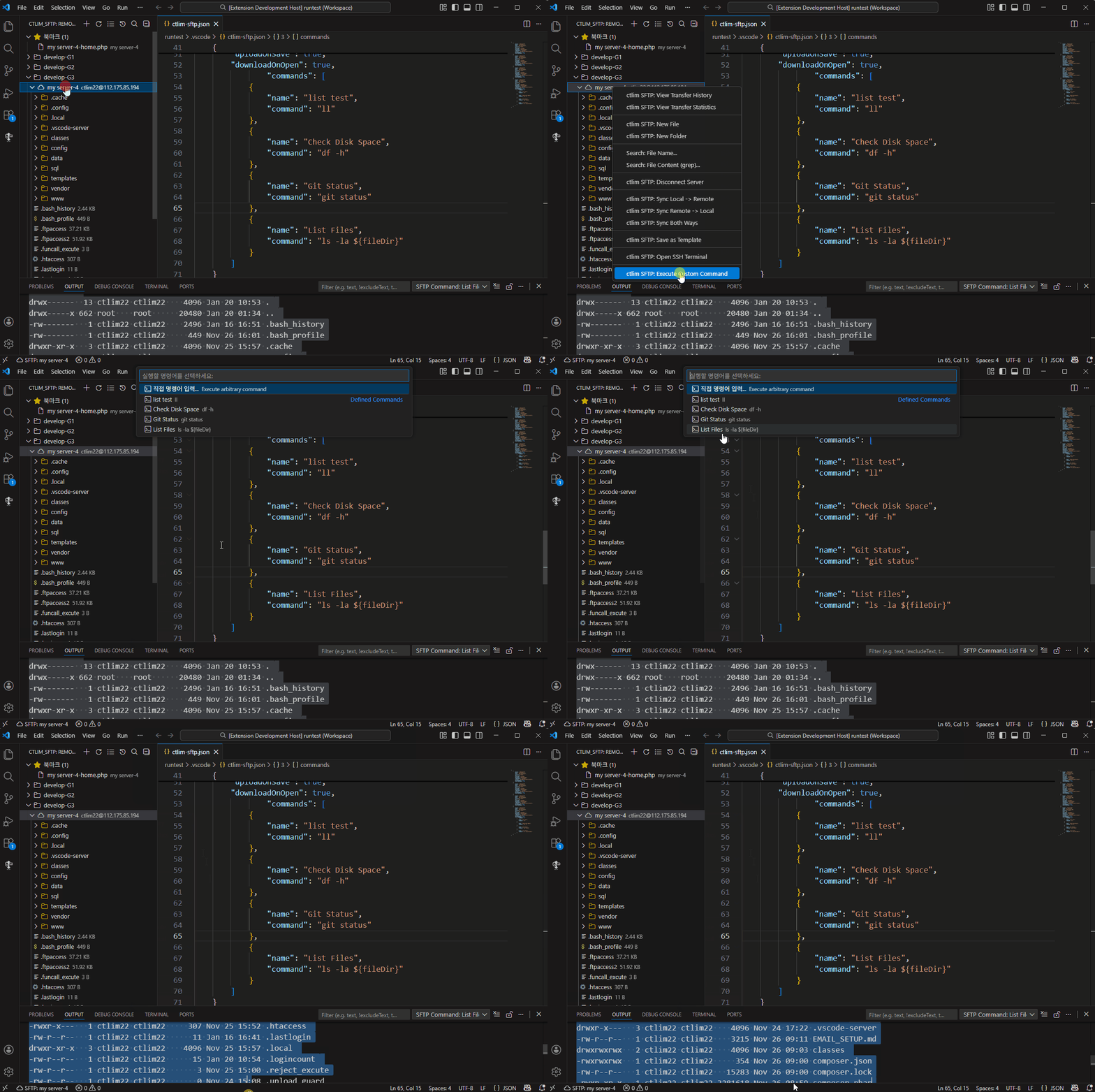
Execute pre-defined or custom shell commands on the remote server instantly.
Usage:
- Right-click server, file, or folder →
Execute Custom Command - Choose from list or enter command manually
Dynamic Variables:
${file}: Full path of selected file${fileDir}: Directory path of selected file${fileName}: Name of selected file${input:Prompt}: Request user input
Example 1: Manual Input
ls -la ${fileDir}
grep "error" ${file}
Example 2: Config Definition (.vscode/ctlim-sftp.json)
"commands": [
    {
        "name": "Check Disk",
        "command": "df -h"
    },
    {
        "name": "Git Status",
        "command": "cd ${fileDir} && git status"
    }
]Select multiple files simultaneously for batch operations.
- Ctrl + Click: Add individual files to selection
- Shift + Click: Range selection
Usage:
- Select multiple files (Ctrl/Shift + Click)
- Right-click →
Download Multiple Files - Progress indicator displayed
Result:
✅ 5 files downloaded successfully
- config.php
- database.php
- functions.php
- index.php
- style.css
Usage:
- Select multiple files
- Right-click →
Delete Multiple Files - Confirmation dialog
Caution:
- Confirmation required before deletion
- Permanently deleted from remote server
- Cannot be recovered
Perform various operations by right-clicking remote files/folders.
Copy full path of remote file to clipboard.
Usage:
- Right-click remote file/folder in Activity Bar
- Select
Copy Remote Path - Path copied to clipboard
Example:
Copied path: /var/www/html/public/index.php
Usage Scenarios:
- Paste file path in SSH terminal
- Share path with other tools or documents
- Reference path when writing scripts
Open web server files directly in browser for verification.
Usage:
- Right-click remote file
- Select
Open in Browser - Enter web URL (first time only) or auto-load from settings
- File opens in browser
Add Web URL to Settings (optional):
{
  "name": "Web Server",
  "host": "example.com",
  "remotePath": "/var/www/html",
  "webUrl": "http://example.com"  // Add this
}
URL Conversion Example:
Remote path: /var/www/html/admin/dashboard.php
Web URL: http://example.com
→ Browser: http://example.com/admin/dashboard.php
Usage Scenarios:
- Verify PHP/HTML files in browser immediately after modification
- Web server debugging and testing
- Real-time frontend change validation
Create files or folders directly on remote server.
Usage:
- Right-click server or remote folder
- Select
New FileorNew Folder - Enter file/folder name
- Created immediately on remote server
Usage Scenarios:
- Quick test file creation
- Set up new directory structure
- Create directly on remote without creating locally
A:
- Check host address and port (default 22)
- Check firewall settings
- Check SSH key permissions (Windows:
icacls, Linux:chmod 600) - Legacy servers automatically use compatible algorithms
A: If you leave the password field empty in config file, you only need to enter it once on connection.
A:
- First download file with
ctlim SFTP: Open Remote File - Check metadata file:
.vscode/.sftp-metadata/ - Conflict detection only works when remote file was directly modified
A: Yes! Click each server in Activity Bar to connect to them individually.
A: Add privateKey field to configuration:
{
  "username": "user",
  "privateKey": "C:/Users/YourName/.ssh/id_rsa",
  "passphrase": "your-passphrase"  // If key has passphrase
}A: Use Command Palette:
ctlim SFTP: Sync Local -> Remote- Upload all local changesctlim SFTP: Sync Remote -> Local- Download all remote changes
Symptom: "Server connection lost" message
Solution:
- Check server timeout settings
- Check network stability
- Auto-Reconnect - Click "Connect" in dialog
Symptom: "❌ Upload failed" message
Check:
- Remote path permissions (
chmod,chown) - Check disk space
- Remove special characters from filename
Symptom: Conflict detection malfunction
Solution:
# Windows
Remove-Item -Recurse .vscode\.sftp-metadata\

# Linux/Mac
rm -rf .vscode/.sftp-metadata/
Re-download files to regenerate metadata
Symptom: "Bad permissions" error with SSH key
Solution:
# Windows
icacls "C:\Users\YourName\.ssh\id_rsa" /inheritance:r /grant:r "%USERNAME%:R"

# Linux/Mac
chmod 600 ~/.ssh/id_rsa- 📦 GitHub Repository: github.com/ctlim2/ctlim
- 🐛 Issue Tracker: github.com/ctlim2/ctlim/issues
- 📝 Changelog: CHANGELOG.md
- 📖 Architecture: docs/architecture.md
Bug reports, feature suggestions, and Pull Requests are welcome!
- Fork the repository
- Create your feature branch (
git checkout -b feature/AmazingFeature) - Commit your changes (
git commit -m 'Add some AmazingFeature') - Push to the branch (
git push origin feature/AmazingFeature) - Open a Pull Request
MIT License - See LICENSE file for details
Copyright (c) 2026 ctlim2
If you find this project useful, please give it a ⭐ Star!
Developer: ctlim
Version: 1.1.20
Last Updated: 2026-01-21