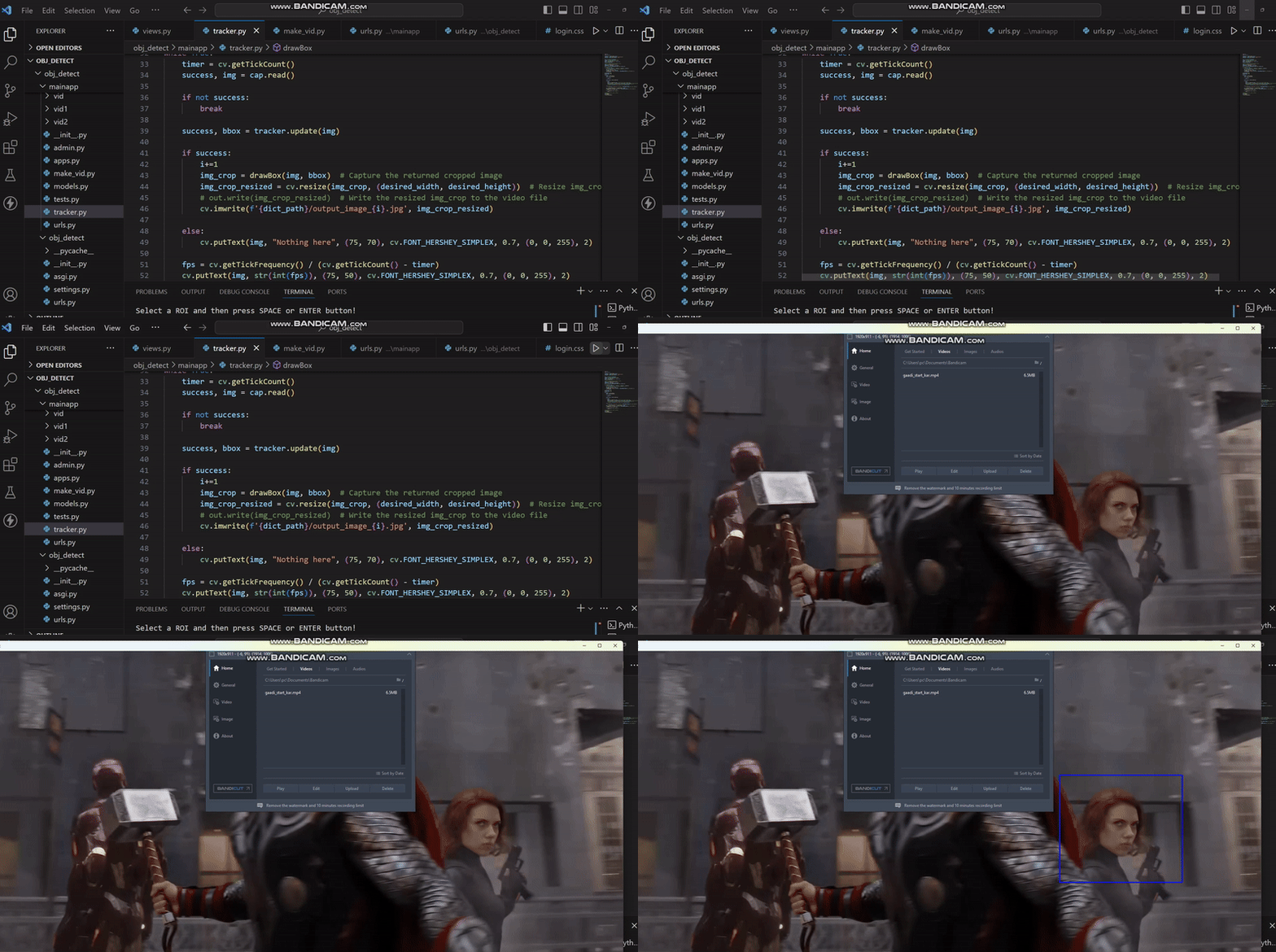
This project is a Python script that uses OpenCV to track a region of interest (ROI) in a video, crop the tracked region frame-by-frame, and save both the cropped images and the annotated video output. It also supports selecting the initial ROI interactively.
- Select and track a region of interest (ROI) in a video.
- Save cropped frames of the tracked ROI as images.
- Save the annotated video with tracking information.
- Real-time display of tracking and FPS information.
- Python 3.x
- OpenCV (Ensure the
opencv-contrib-pythonpackage is installed for legacy tracker support) - A valid video file (
mp4format recommended).
-
Clone this repository:
git clone <repository_url>
cd <repository_name>
-
Install the required dependencies:
pip install opencv-contrib-python
-
Place the input video file in the
vid1folder. Ensure the file is namedavng.mp4or update the script with your video filename.
-
Run the script:
python script.py
-
Select the ROI by dragging a rectangle over the desired region in the displayed frame. Press
EnterorSpaceto confirm your selection. -
The script will:
- Track the selected ROI throughout the video.
- Save cropped frames of the tracked region to the
vid2folder. - Save the annotated video output as
output.mp4in the root directory.
-
Press
qduring playback to exit the tracking loop early.
project/
|
|-- script.py        # Main Python script
|-- vid1/            # Input video folder
|   |-- avng.mp4     # Input video file
|
|-- vid2/            # Folder for cropped frames
|
|-- output.mp4       # Annotated output video
|
|-- README.md        # Project documentation
- Ensure the input video is placed in the correct directory (
vid1) before running the script. - The
TrackerMOSSEtracker is used for lightweight tracking. For more robust tracking, consider using other trackers likeTrackerCSRT.
-
Error: Cannot open video file
- Ensure the input video file exists and the path is correct.
-
Error: Cannot read video
- Check the video format and compatibility with OpenCV.
-
Tracking issues
- If the tracker loses track frequently, try selecting a clearer ROI or use a more robust tracker.
This project is licensed under the MIT License. See the LICENSE file for details.
Contributions, issues, and feature requests are welcome! Feel free to fork the repository and submit pull requests.