- The Azure AI Language service is designed to help you extract information from text. It provides functionality that you can use for:
- Language detection - determining the language in which text is written.
- Key phrase extraction - identifying important words and phrases in the text that indicate the main points.
- Sentiment analysis - quantifying how positive or negative the text is.
- Named entity recognition - detecting references to entities, including people, locations, time periods, organizations, and more.
- Entity linking - identifying specific entities by providing reference links to Wikipedia articles.
-
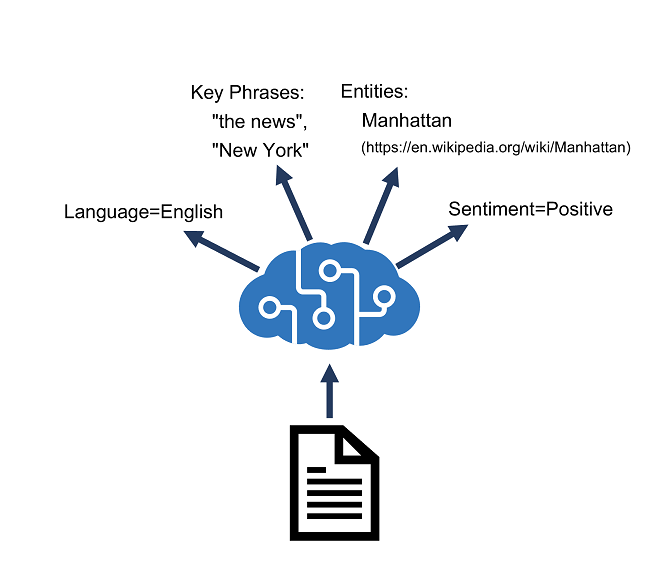
- The Azure AI Language Detection API evaluates text input and, for each document submitted, returns language identifiers with a score indicating the strength of the analysis.
- The Azure AI Language service recognizes up to 120 languages.
- Another scenario could involve a chat bot - Language detection can be used to determine which language they are using and allow you to configure your bot responses in the appropriate language.
- Language detection can work with documents or single phrases.
- the document size must be under 5,120 characters. The size limit is per document and each collection is restricted to 1,000 items (IDs).
- A sample JSON, including a collection of documents, each containing a unique id and the text to be analyzed. Optionally, you can provide a countryHint to improve prediction performance.
{
  "documents": [
    {
      "countryHint": "US",
      "id": "1",
      "text": "Hello world"
    },
    {
      "id": "2",
      "text": "Bonjour tout le monde"
    }
  ]
}
- Parse the JSON response to determine which language is used. The confidence score (0 to 1), with 1 being a higher confidence level.
{
  "documents": [
   {
     "id": "1",
     "detectedLanguage": {
       "name": "English",
       "iso6391Name": "en",
       "confidenceScore": 1
     },
     "warnings": []
   },
   {
     "id": "2",
     "detectedLanguage": {
       "name": "French",
       "iso6391Name": "fr",
       "confidenceScore": 1
     },
     "warnings": []
   }
  ],
  "errors": [],
  "modelVersion": "2020-04-01"
}
- If you pass in a document that has multilingual content, the service will behave a bit differently.
- Mixed language content within the same document returns the language with the largest representation in the content, but with a lower positive rating, reflecting the marginal strength of that assessment.
- Example, the input is a blend of English, Spanish, and French. The analyzer uses statistical analysis of the text to determine the predominant language.
{
  "documents": [
    {
      "id": "1",
      "text": "Hello, I would like to take a class at your University. ¿Se ofrecen clases en español?
Es mi primera lengua y más fácil para escribir. Que diriez-vous des cours en français?"
    }
  ]
}

{
  "documents": [
    {
      "id": "1",
      "detectedLanguages": [
        {
          "name": "Spanish",
          "iso6391Name": "es",
          "score": 0.9375
        }
      ]
    }
  ],
  "errors": []
}
- The last condition to consider is when there is ambiguity as to the language content.
- The scenario might happen if you submit textual content that the analyzer is not able to parse, for example because of character encoding issues when converting the text to a string variable.
- As a result, the response for the language name and ISO code will indicate (unknown) and the score value will be returned as NaN, or Not a Number. Example
{
      "id": "5",
      "detectedLanguages": [
        {
          "name": "(Unknown)",
          "iso6391Name": "(Unknown)",
          "score": "NaN"
        }
      ]
}
- Key phrase extraction is the process of evaluating the text of a document, or documents, and then identifying the main points around the context of the document(s).
- Key phrase extraction works best for larger documents (the maximum size that can be analyzed is 5,120 characters).
- As with language detection, the REST interface enables you to submit one or more documents for analysis.
{ "documents": [ { "id": "1", "language": "en", "text": "You must be the change you wish to see in the world." }, { "id": "2", "language": "en", "text": "The journey of a thousand miles begins with a single step." } ] } - The response contains a list of key phrases detected in each document.
 {
   "documents": [
    {
      "id": "1",
      "keyPhrases": [
        "change",
        "world"
      ],
      "warnings": []
    },
    {
      "id": "2",
      "keyPhrases": [
        "miles",
        "single step",
        "journey"
      ],
      "warnings": []
    }
   ],
   "errors": [],
   "modelVersion": "2020-04-01"
 }
- Sentiment analysis is used to evaluate how positive or negative a text document is, which can be useful in various workloads, such as:
- Evaluating a movie, book, or product by quantifying sentiment based on reviews.
- Prioritizing customer service responses to correspondence received through email or social media messaging.
- When using the Azure AI Language service to evaluate sentiment, the response includes overall document sentiment and individual sentence sentiment for each document submitted to the service. Example, a single document for sentiment analysis
{ "documents": [ { "language": "en", "id": "1", "text": "Smile! Life is good!" } ] } { "documents": [ { "id": "1", "sentiment": "positive", "confidenceScores": { "positive": 0.99, "neutral": 0.01, "negative": 0.00 }, "sentences": [ { "text": "Smile!", "sentiment": "positive", "confidenceScores": { "positive": 0.97, "neutral": 0.02, "negative": 0.01 }, "offset": 0, "length": 6 }, { "text": "Life is good!", "sentiment": "positive", "confidenceScores": { "positive": 0.98, "neutral": 0.02, "negative": 0.00 }, "offset": 7, "length": 13 } ], "warnings": [] } ], "errors": [], "modelVersion": "2020-04-01" } - Sentence sentiment is based on confidence scores for positive, negative, and neutral classification values between 0 and 1.
- Overall document sentiment is based on sentences:
- If all sentences are neutral, the overall sentiment is neutral.
- If sentence classifications include only positive and neutral, the overall sentiment is positive.
- If the sentence classifications include only negative and neutral, the overall sentiment is negative.
- If the sentence classifications include positive and negative, the overall sentiment is mixed.
- Named Entity Recognition identifies entities that are mentioned in the text.
- Entities are grouped into categories and subcategories, for example: Person, Location, DateTime, Organization, Address, Email, URL
- Input for entity recognition is similar to input for other Azure AI Language API functions:
 {
   "documents": [
     {
       "language": "en",
       "id": "1",
       "text": "Joe went to London on Saturday"
     }
   ]
 }
 {
   "documents":[
       {
           "id":"1",
           "entities":[
           {
             "text":"Joe",
             "category":"Person",
             "offset":0,
             "length":3,
             "confidenceScore":0.62
           },
           {
             "text":"London",
             "category":"Location",
             "subcategory":"GPE",
             "offset":12,
             "length":6,
             "confidenceScore":0.88
           },
           {
             "text":"Saturday",
             "category":"DateTime",
             "subcategory":"Date",
             "offset":22,
             "length":8,
             "confidenceScore":0.8
           }
         ],
         "warnings":[]
       }
   ],
   "errors":[],
   "modelVersion":"2021-01-15"
 }
- In some cases, the same name might be applicable to more than one entity.
- For example, does an instance of the word "Venus" refer to the planet or the goddess from mythology?
- Entity linking can be used to disambiguate entities of the same name by referencing an article in a knowledge base.
- Wikipedia provides the knowledge base for the Text Analytics service.
- Specific article links are determined based on entity context within the text.
- For example, "I saw Venus shining in the sky" is associated with the link https://en.wikipedia.org/wiki/Venus;
- while "Venus, the goddess of beauty" is associated with https://en.wikipedia.org/wiki/Venus_(mythology).
 {
   "documents": [
     {
       "language": "en",
       "id": "1",
       "text": "I saw Venus shining in the sky"
     }
   ]
 }
 {
   "documents":
     [
       {
         "id":"1",
         "entities":[
           {
             "name":"Venus",
             "matches":[
               {
                 "text":"Venus",
                 "offset":6,
                 "length":5,
                 "confidenceScore":0.01
               }
             ],
             "language":"en",
             "id":"Venus",
             "url":"https://en.wikipedia.org/wiki/Venus",
             "dataSource":"Wikipedia"
           }
         ],
         "warnings":[]
       }
     ],
   "errors":[],
   "modelVersion":"2020-02-01"
 }
-

-
Example, Process hotel reviews. By using the Azure AI Language, they can determine the language each review is written in, the sentiment (positive, neutral, or negative) of the reviews, key phrases that might indicate the main topics discussed in the review, and named entities, such as places, landmarks, or people mentioned in the reviews.
-
Provision an Azure AI Language resource : Azure Portal -> Azure AI services -> Create Language Service.
-
Clone the repository for this course in Cloud Shell
- Portal > [>_] (Cloud Shell) button -> Uss Bash (Bash or PowerShell) -> Create storage (if not)
- Bash Terminal -> Download the sample code -> save azure-ai-eng -> open the built-in code editor 05-analyze-text
rm -r azure-ai-eng -f git clone https://github.com/MicrosoftLearning/AI-102-AIEngineer azure-ai-eng cd azure-ai-eng/05-analyze-text code .
-
Prepare to use the Azure AI Language SDK for text analytics
- Bash -> go t "~/azure-ai-eng/05-analyze-text/C-Sharp/text-analysis" folder. Install the Text Analytics SDK package
C# dotnet add package Azure.AI.TextAnalytics --version 5.3.0 Python pip install azure-ai-textanalytics==5.3.0 pip install python-dotenv - Code update - C#: Program.cs OR Python: text-analysis.py
- namespace references
C# // import namespaces using Azure; using Azure.AI.TextAnalytics; Python # import namespaces from azure.core.credentials import AzureKeyCredential from azure.ai.textanalytics import TextAnalyticsClient - Main function -> the comment Create client using endpoint and key, and add the following code to create a client for the Text Analysis API:
C# // Create client using endpoint and key AzureKeyCredential credentials = new AzureKeyCredential(cogSvcKey); Uri endpoint = new Uri(cogSvcEndpoint); TextAnalyticsClient CogClient = new TextAnalyticsClient(endpoint, credentials); Python # Create client using endpoint and key credential = AzureKeyCredential(cog_key) cog_client = TextAnalyticsClient(endpoint=cog_endpoint, credential=credential) - Run Code - dotnet run OR python text-analysis.py.
- the output displaying the contents of each review text file in the reviews folder.
- Bash -> go t "~/azure-ai-eng/05-analyze-text/C-Sharp/text-analysis" folder. Install the Text Analytics SDK package
-
Detect language ``` C# // Get language DetectedLanguage detectedLanguage = CogClient.DetectLanguage(text); Console.WriteLine($"\nLanguage: {detectedLanguage.Name}");
Python # Get language detectedLanguage = cog_client.detect_language(documents=[text])[0] print('\nLanguage: {}'.format(detectedLanguage.primary_language.name)) ```- Note: In this example, each review is analyzed individually, resulting in a separate call to the service for each file.
- An alternative approach is to create a collection of documents and pass them to the service in a single call.
- In both approaches, the response from the service consists of a collection of documents; which is why in the Python code above, the index of the first (and only) document in the response ([0]) is specified.
-
Evaluate sentiment
- Sentiment analysis is a commonly used technique to classify text as positive or negative (or possible neutral or mixed).
- It’s commonly used to analyze social media posts, product reviews, and other items where the sentiment of the text may provide useful insights.
C#
 // Get sentiment
 DocumentSentiment sentimentAnalysis = CogClient.AnalyzeSentiment(text);
 Console.WriteLine($"\nSentiment: {sentimentAnalysis.Sentiment}");

Python
 # Get sentiment
 sentimentAnalysis = cog_client.analyze_sentiment(documents=[text])[0]
 print("\nSentiment: {}".format(sentimentAnalysis.sentiment))
-
Identify key phrases - It can be useful to identify key phrases in a body of text to help determine the main topics that it discusses.
C# // Get key phrases KeyPhraseCollection phrases = CogClient.ExtractKeyPhrases(text); if (phrases.Count > 0) { Console.WriteLine("\nKey Phrases:"); foreach(string phrase in phrases) { Console.WriteLine($"\t{phrase}"); } } Python # Get key phrases phrases = cog_client.extract_key_phrases(documents=[text])[0].key_phrases if len(phrases) > 0: print("\nKey Phrases:") for phrase in phrases: print('\t{}'.format(phrase)) -
Extract entities - Documents or other bodies of text mention people, places, time periods, or other entities. The text Analytics API can detect multiple categories (and subcategories) of entity in your text.
C# // Get entities CategorizedEntityCollection entities = CogClient.RecognizeEntities(text); if (entities.Count > 0) { Console.WriteLine("\nEntities:"); foreach(CategorizedEntity entity in entities) { Console.WriteLine($"\t{entity.Text} ({entity.Category})"); } } Python # Get entities entities = cog_client.recognize_entities(documents=[text])[0].entities if len(entities) > 0: print("\nEntities") for entity in entities: print('\t{} ({})'.format(entity.text, entity.category)) -
Extract linked entities - In addition to categorized entities, the Text Analytics API can detect entities for which there are known links to data sources, such as Wikipedia.
 C#
  // Get linked entities
  LinkedEntityCollection linkedEntities = CogClient.RecognizeLinkedEntities(text);
  if (linkedEntities.Count > 0)
  {
      Console.WriteLine("\nLinks:");
      foreach(LinkedEntity linkedEntity in linkedEntities)
      {
          Console.WriteLine($"\t{linkedEntity.Name} ({linkedEntity.Url})");
      }
  }

 Python
  # Get linked entities
  entities = cog_client.recognize_linked_entities(documents=[text])[0].entities
  if len(entities) > 0:
      print("\nLinks")
      for linked_entity in entities:
          print('\t{} ({})'.format(linked_entity.name, linked_entity.url))

1. How should you create an application that monitors the comments on your company's web site and flags any negative posts?
	1. [x] Use the Azure AI Language service to extract key phrases.
	1. [ ] Use the Azure AI Language service to perform sentiment analysis of the comments.
	1. [ ] Use the Azure AI Language service to extract named entities from the comments.
1. You have analyzed text that contains the word "Paris". How might you determine of this word refers to the French city or the character in Homer's "The Iliad"?
	1. [ ] Use the Azure AI Language service to extract key phrases.
	1. [ ] Use the Azure AI Language service to detect the language of the text.
	1. [x] Use the Azure AI Language service to extract linked entities.
- The Azure AI Translator provides an API for translating text between 90 supported languages.
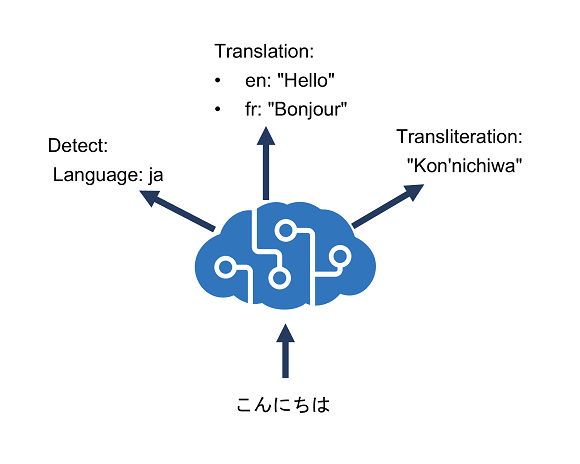
- Azure AI Translator provides a multilingual text translation API that you can use for:
- Language detection.
- One-to-many translation.
- Script transliteration (converting text from its native script to an alternative script).
-
Language detection - Use the REST API to detect the language in which text is written. Example ``` { 'Text' : 'こんにちは' }
curl -X POST "https://api.cognitive.microsofttranslator.com/detect?api-version=3.0" -H "Ocp-Apim-Subscription-Region: <your-service-region>" -H "Ocp-Apim-Subscription-Key: <your-key>" -H "Content-Type: application/json" -d "[{ 'Text' : 'こんにちは' }] The response, indicating that the text is written in Japanese: [ { "language": "ja", "score": 1.0, "isTranslationSupported": true, "isTransliterationSupported": true } ] ``` -
Translation - To translate text from one language to another. Example, transfer "from" ja (Japanese) and "to" en (English) and fr (French) parameters ``` curl -X POST "https://api.cognitive.microsofttranslator.com/translate?api-version=3.0&from=ja&to=fr&to=en" -H "Ocp-Apim-Subscription-Key: " -H "Ocp-Apim-Subscription-Region: " -H "Content-Type: application/json; charset=UTF-8" -d "[{ 'Text' : 'こんにちは' }]"
[ {"translations": [ {"text": "Hello", "to": "en"}, {"text": "Bonjour", "to": "fr"} ] } ] ``` -
Transliteration - Japanese text is written using Hiragana script, instead translate to a different language, transliterate it to a different script
-
Example to render the text in Latin script (as used by English language text). Used fromScript, toScript parameters ``` curl -X POST "https://api.cognitive.microsofttranslator.com/translate?api-version=3.0&fromScript=Jpan&toScript=Latn" -H "Ocp-Apim-Subscription-Key: " -H "Ocp-Apim-Subscription-Region: " -H "Content-Type: application/json" -d "[{ 'Text' : 'こんにちは' }]"
  [
      {
          "script": "Latn",
          "text": "Kon'nichiwa"
      }
  ]
  ```
-
The Translate function of the API supports numerous parameters that affect the output.
-
Word alignment
- In written English (using Latin script), spaces are used to separate words. However, in some other languages (and more specifically, scripts) this is not always the case.
- Example, translating "Smart Services" from en (English) to zh (Simplified Chinese) produces the result "智能服务", and it's difficult to understand the relationship between the characters in the source text and the corresponding characters in the translation.
- To resolve this problem, specify the includeAlignment parameter with a value of true in your call to produce the following result:
[ { "translations":[ { "text":"智能服务", "to":"zh-Hans", "alignment":{ "proj":"0:4-0:1 6:13-2:3" } } ] } ]- These results tell us that characters 0 to 4 in the source correspond to characters 0 to 1 in the translation, while characters 6 to 13 in the source correspond to characters 2 to 3 in the translation.
-
Sentence length
- Sometimes it might be useful to know the length of a translation, for example to determine how best to display it in a user interface. You can get this information by setting the includeSentenceLength parameter to true.
- Example, specifying this parameter when translating the English (en) text "Hello world" to French (fr) produces the following results:
[
   {
      "translations":[
         {
            "text":"Salut tout le monde",
            "to":"fr",
            "sentLen":{"srcSentLen":[12],"transSentLen":[20]}
         }
      ]
   }
]
-
Profanity filtering
- Sometimes text contains profanities, which you might want to obscure or omit altogether in a translation.
- You can handle profanities by specifying the profanityAction parameter, which can have one of the following values:
- NoAction: Profanities are translated along with the rest of the text.
- Deleted: Profanities are omitted in the translation.
- Marked: Profanities are indicated using the technique indicated in the profanityMarker parameter (if supplied). The default value for this parameter is Asterisk, which replaces characters in profanities with "*". As an alternative, you can specify a profanityMarker value of Tag, which causes profanities to be enclosed in XML tags.
- Example, translating the English (en) text "JSON is ▇▇▇▇ great!" (where the blocked out word is a profanity) to German (de) with a profanityAction of Marked and a profanityMarker of Asterisk produces the following result:
[
   {
      "translations":[
         {
            "text":"JSON ist *** erstaunlich.",
            "to":"de"
         }
      ]
   }
]
-
While the default translation model used by Azure AI Translator is effective for general translation, develop a translation solution for businesses or industries in that have specific vocabularies of terms that require custom translation.
-
create a custom model that maps your own sets of source and target terms for translation. To create a custom model, use the Custom Translator portal to:
- Create a workspace linked to your Azure AI Translator resource.
- Create a project.
- Upload training data files and train a model.
- Test your model and publish your model.
- Make translation calls to the API.
-
-
custom model is assigned a unique category Id (highlighted in the screenshot), which you can specify in translate calls to your Azure AI Translator resource by using the category parameter, causing translation to be performed by your custom model instead of the default model.
-
How to call the API
- To initiate a translation, a POST request to the URL: https://api.cognitive.microsofttranslator.com/translate?api-version=3.0
- Your request needs to include a couple of parameters:
- api-version: The required version of the API.
- to: The target language to translate to. For example: to=fr for French.
- category: Your category Id.
- Your request must also include a number of required headers:
- Ocp-Apim-Subscription-Key. Header for your client key. For example: Ocp-Apim-Subscription-Key=.
- Content-Type. The content type of the payload. The required format is: Content-Type: application/json; charset=UTF-8.
- The request body should contain an array that includes a JSON object with a Text property that specifies the text that you want to translate:
[ {"Text":"Where can I find my employee details?"} ] - Send a POST request using curl, to translate a sentence from English to Dutch:
curl -X POST "https://api.cognitive.microsofttranslator.com/translate?api-version=3.0&from=en&to=nl&category=<category-id>" -H "Ocp-Apim-Subscription-Key: <your-key" -H "Content-Type: application/json; charset=UTF-8" -d "[{'Text':'Where can I find my employee details?'}]"

Response
[
    {
        "translations":[
            {"text":"Waar vind ik mijn personeelsgegevens?","to":"nl"}
        ]
    }
]

-
Examine hotel reviews, standardizing on English as the language that is used for analysis. By using Azure AI Translator, they can determine the language each review is written in, and if it is not already English, translate it from whatever source language it was written in into English.
-
Clone the repo into your Azure Cloud Shell, code azure-ai-eng/06-translate-text
-
Provision an Azure AI Translator resource - Portal -> Azure AI services -> Translator -> Create
-
Detect language
- Azure AI Translator can automatically detect the source language of text to be translated, but it also enables you to explicitly detect the language in which text is written.
- GetLanguage function, returns “en” for all text values. Use the Azure AI Translator’s REST API to detect the language of the specified text.
C#
 // Use the Azure AI Translator detect function
 object[] body = new object[] { new { Text = text } };
 var requestBody = JsonConvert.SerializeObject(body);
 using (var client = new HttpClient())
 {
		 using (var request = new HttpRequestMessage())
		 {
				 // Build the request
				 string path = "/detect?api-version=3.0";
				 request.Method = HttpMethod.Post;
				 request.RequestUri = new Uri(translatorEndpoint + path);
				 request.Content = new StringContent(requestBody, Encoding.UTF8, "application/json");
				 request.Headers.Add("Ocp-Apim-Subscription-Key", cogSvcKey);
				 request.Headers.Add("Ocp-Apim-Subscription-Region", cogSvcRegion);

				 // Send the request and get response
				 HttpResponseMessage response = await client.SendAsync(request).ConfigureAwait(false);
				 // Read response as a string
				 string responseContent = await response.Content.ReadAsStringAsync();

				 // Parse JSON array and get language
				 JArray jsonResponse = JArray.Parse(responseContent);
				 language = (string)jsonResponse[0]["language"];
		 }
 }

Python

 # Use the Azure AI Translator detect function
 path = '/detect'
 url = translator_endpoint + path

 # Build the request
 params = {
		 'api-version': '3.0'
 }

 headers = {
 'Ocp-Apim-Subscription-Key': cog_key,
 'Ocp-Apim-Subscription-Region': cog_region,
 'Content-type': 'application/json'
 }

 body = [{
		 'text': text
 }]

 # Send the request and get response
 request = requests.post(url, params=params, headers=headers, json=body)
 response = request.json()

 # Parse JSON array and get language
 language = response[0]["language"]
-
Translate text - Determine the language in which reviews are written, use Azure AI Translator to translate any non-English reviews into English.
 C#
 // Use the Azure AI Translator translate function
 object[] body = new object[] { new { Text = text } };
 var requestBody = JsonConvert.SerializeObject(body);
 using (var client = new HttpClient())
 {
 		using (var request = new HttpRequestMessage())
 		{
 				// Build the request
 				string path = "/translate?api-version=3.0&from=" + sourceLanguage + "&to=en" ;
 				request.Method = HttpMethod.Post;
 				request.RequestUri = new Uri(translatorEndpoint + path);
 				request.Content = new StringContent(requestBody, Encoding.UTF8, "application/json");
 				request.Headers.Add("Ocp-Apim-Subscription-Key", cogSvcKey);
 				request.Headers.Add("Ocp-Apim-Subscription-Region", cogSvcRegion);

 				// Send the request and get response
 				HttpResponseMessage response = await client.SendAsync(request).ConfigureAwait(false);
 				// Read response as a string
 				string responseContent = await response.Content.ReadAsStringAsync();

 				// Parse JSON array and get translation
 				JArray jsonResponse = JArray.Parse(responseContent);
 				translation = (string)jsonResponse[0]["translations"][0]["text"];
 		}
 }

 Python
 # Use the Azure AI Translator translate function
 path = '/translate'
 url = translator_endpoint + path

 # Build the request
 params = {
 		'api-version': '3.0',
 		'from': source_language,
 		'to': ['en']
 }

 headers = {
 		'Ocp-Apim-Subscription-Key': cog_key,
 		'Ocp-Apim-Subscription-Region': cog_region,
 		'Content-type': 'application/json'
 }

 body = [{
 		'text': text
 }]

 # Send the request and get response
 request = requests.post(url, params=params, headers=headers, json=body)
 response = request.json()

 # Parse JSON array and get translation
 translation = response[0]["translations"][0]["text"]

 OUTPUT
 -------------
 review5.txt

 Un h�tel agr�able
 L'Hotel Buckingham, Londres, UK
 J adore cet h�tel. Le personnel est tr�s amical et les chambres sont confortables.
 Language: fr

 Translation:
 A pleasant hotel
 The Buckingham Hotel, London, UK
 I love this hotel. The staff is very friendly and the rooms are comfortable.

 -------------
 review1.txt

 Good Hotel and staff
 The Royal Hotel, London, UK
 3/2/2018
 Clean rooms, good service, great location near Buckingham Palace and Westminster Abbey, and so on. We thoroughly enjoyed our stay. The courtyard is very peaceful and we went to a restaurant which is part of the same group and is Indian ( West coast so plenty of fish) with a Michelin Star. We had the taster menu which was fabulous. The rooms were very well appointed with a kitchen, lounge, bedroom and enormous bathroom. Thoroughly recommended.
 Language: en
- What function of the Azure AI Translator service should you use to convert the Chinese word "你好" to the English word "Hello"?
- detect
- translate
- transliterate
- What function of the Azure AI Translator service should you use to convert the Russian word "спасибо" in Cyrillic characters to "spasibo" in Latin characters?
- detect
- translate
- transliterate