This walkthrough will help you set up the Volume Panel tile. Access this guide via:
Home -> Quick Settings Tile -> Config
- Swipe down once from the top of the screen.
- Swipe down again to fully expand the Quick Settings panel.
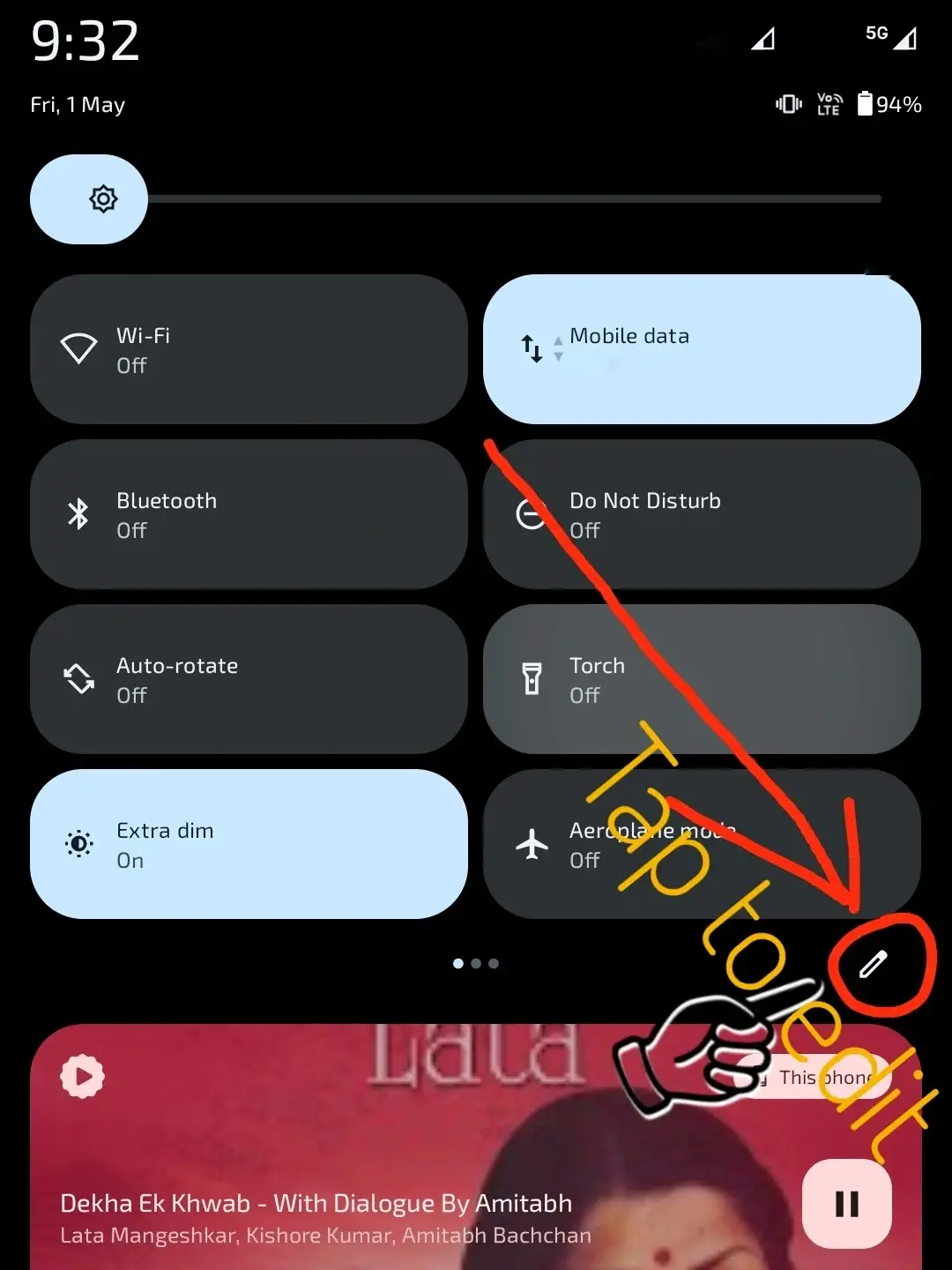
- Tap the Edit control (usually a pencil icon or "Edit tiles").
- Locate the Volume Panel tile under the DhwaniControl section.
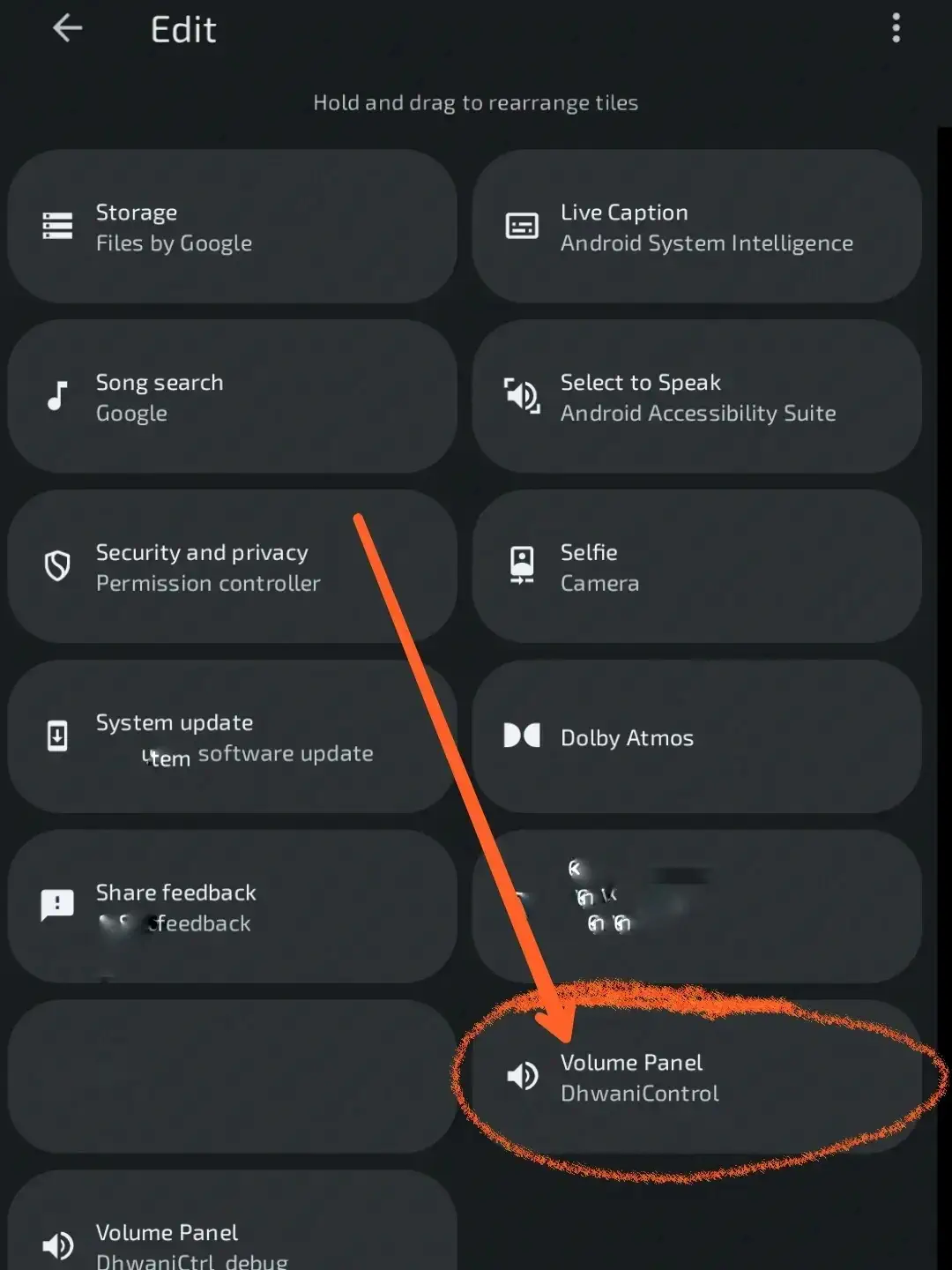
- Drag the Volume Panel tile into your active tiles area.
- Place it in a convenient location for easy reach.
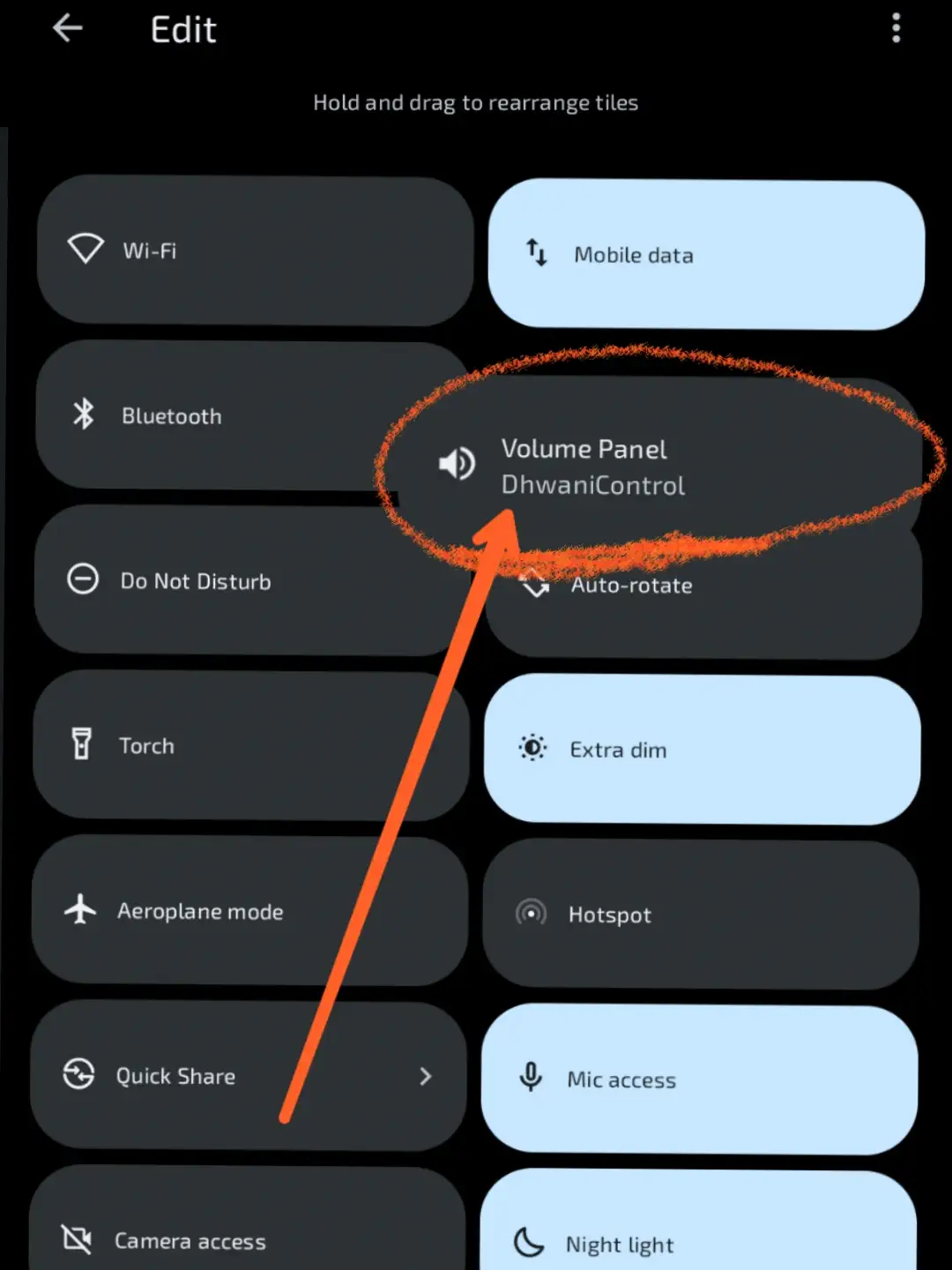
- Save your layout and exit edit mode.
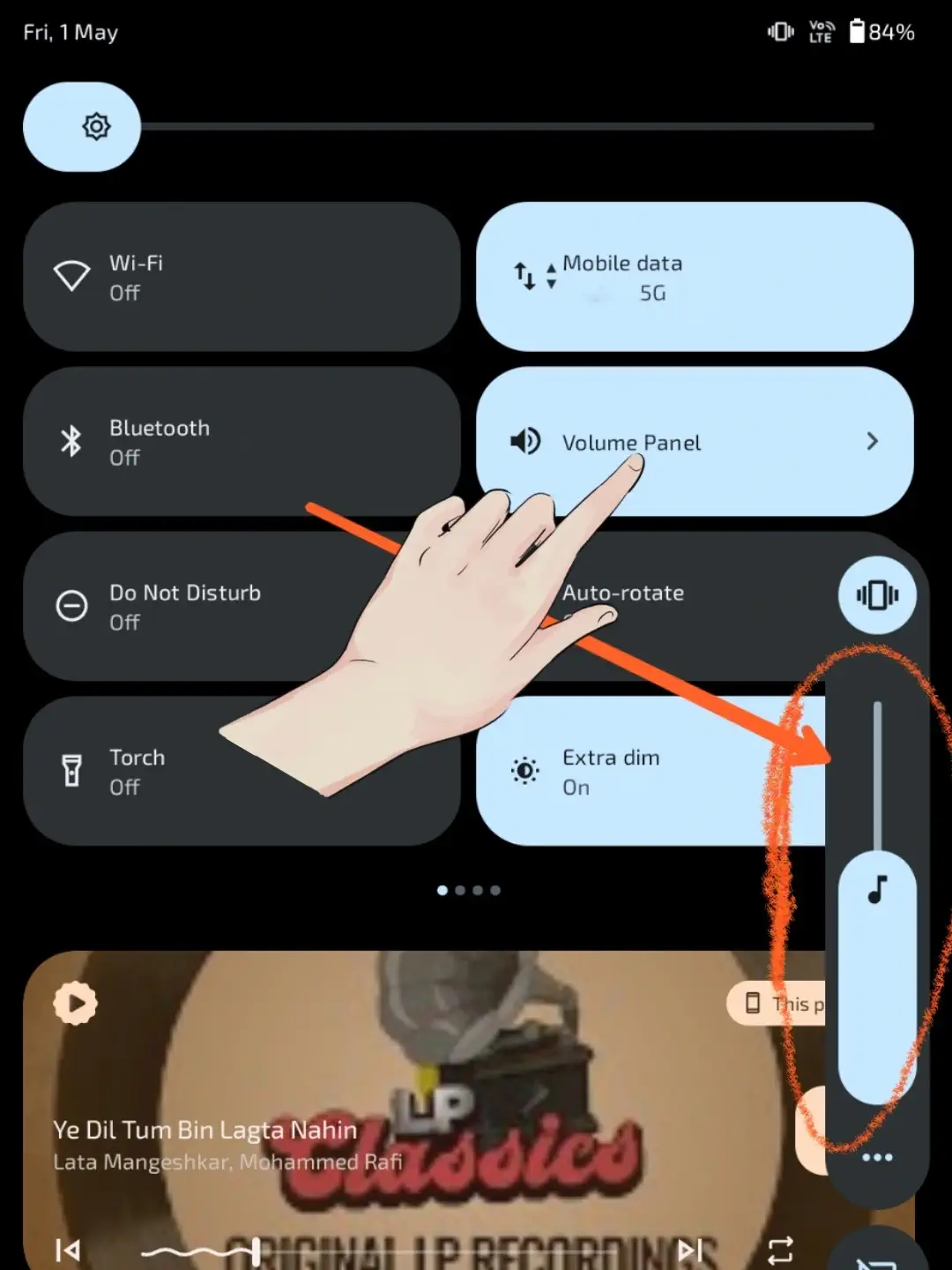
- Tap the Volume Panel tile to confirm the native volume controls appear.
- Tile missing: Try restarting your device or ensuring you've opened the app at least once.
- Tile unresponsive: Ensure the app is not in "deep sleep". Check Battery Optimization.